Branding and the Embedded Widget
The Theme studio gives a deployment of the web workspace its own colours, fonts and logos, and Embedded widget puts the workspace's chat on a web page, behind a round launcher button. This page is for the administrator who brands a deployment and installs the widget: what each setting changes, what it leaves alone, and why a widget may not show.
Document Author: Uni Zhu
Before you start
- Permission. Both screens need
workspace:manage, which the server checks again on every read, save and publish. - Where they are. Theme studio is the palette icon in the rail, and Embedded widget is under Surfaces in the panel beside it.
- Draft and published. Only people with
workspace:managesee a draft. What is published reaches everyone, and anyone who reaches the workspace can read it, signed in or not: the sign-in page and the widget need it before anyone signs in. The widget's allowed sites are left out of what anyone can read.
Per brand and per deployment
The web workspace is built for one brand, and the build fixes the name the interface uses, the logo, wordmark and browser icon shown until you upload your own, the base colours and fonts, whether people can switch to dark, and whether the studio may publish at all. A brand that keeps its own theme turns Publish theme off and says why under the heading; the server refuses a publish too, drafts still save, and a theme published earlier is not applied, which Versions says: Not applied.
Everything you set here belongs to the deployment: one published theme and one published widget, for everyone who uses it. There is no theme per person or per department, whatever the panel's Tenant themes heading suggests. The server keeps both, with their drafts, in one file for its brand, so a deployment rebuilt for another brand starts with nothing published, showing that brand's own colours, fonts and logos.
Each brand starts from its own theme. Until a draft is saved, the studio's draft is the brand's own colours and type pairing, and a widget that follows the theme draws its launcher in the brand's own accent until a theme is published. The server reads them from the brand's stylesheet, src/brands/<brand>/theme.css under the folder it runs in; where that file is missing, it starts the brand from the stock theme, and its log says so once.
Brand the workspace
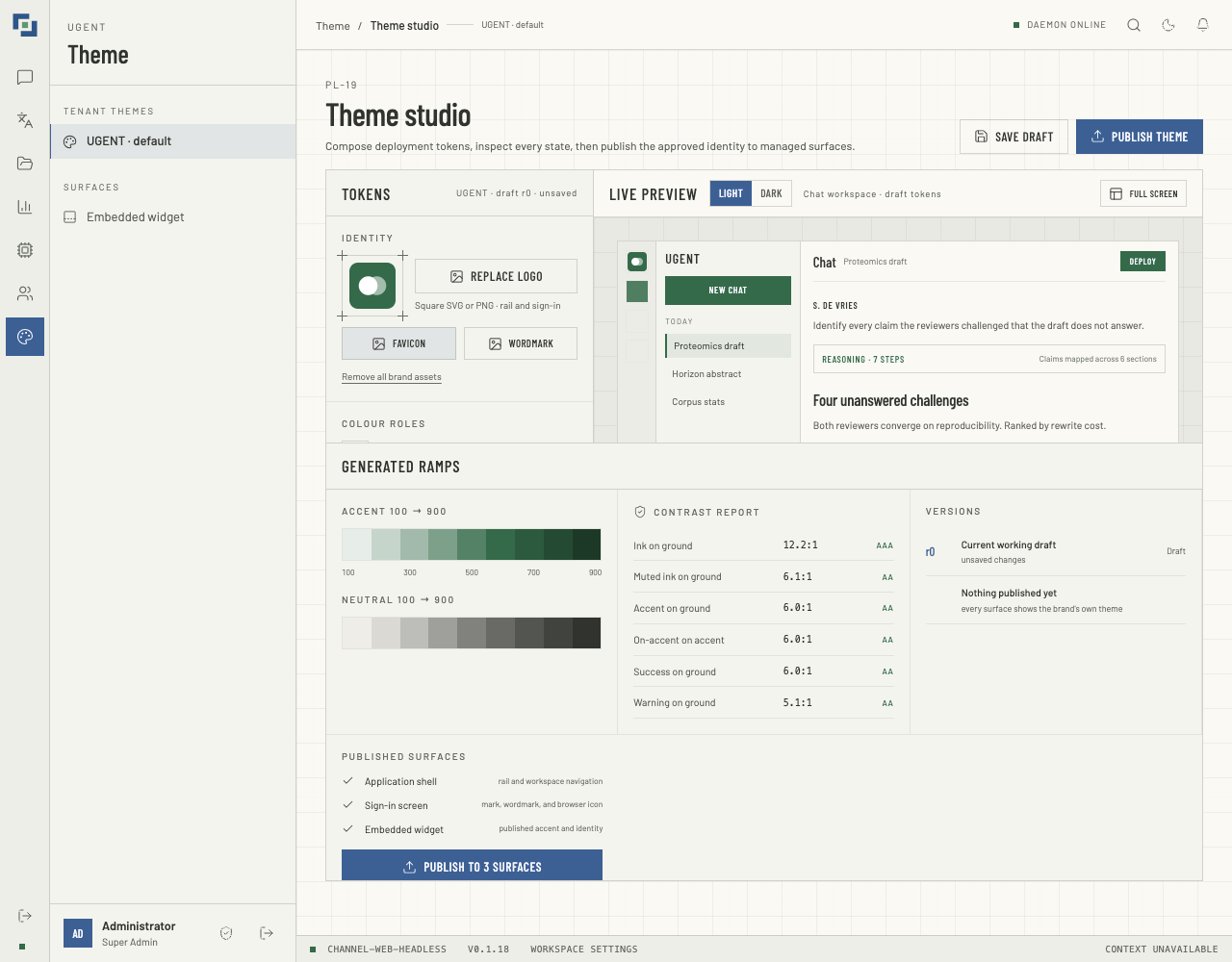
On a wide screen the studio has three columns: Tokens, the settings; Live preview; and Generated ramps, with the contrast report, the versions and the publish button. At 1280 px and below, Generated ramps sits under the other two, and on a narrow screen tokens, preview and report switch between them.
What you can change
| Setting | What it does |
|---|---|
| Upload logo | A square SVG or PNG for the rail and the sign-in screen. It reads Replace logo once there is one. |
| Favicon | The browser icon. |
| Wordmark | The product's name as an image, for the sign-in screen. |
| Colour roles | Ground, Panel, Ink, Muted ink, Success, Warning and Error, each with a colour picker. |
| Accent | The interface's highlight colour: one of five swatches, or any colour from the + after them. |
| Typography | Barlow Condensed · Barlow, Manrope · Barlow or Barlow Condensed · IBM Plex Sans: headings, then text. |
| Density | 0.75× to 1.15×: the room inside cards. Text keeps its size: the preview pads its panels by it, as the workspace pads its cards. |
| Corner radius | Square · 0 px, Soft · 4 px, Rounded · 8 px or Relaxed · 12 px, for buttons, fields and panels. |
Each logo is a PNG or SVG of at most 256 KB. An SVG may colour its shapes with class rules that set fill or stroke to a hex colour or none, or set fill-rule, clip-rule, an opacity or stroke-width; they are written onto the shapes. One with a script, any other style, a foreignObject, object, embed or iframe is refused. Event handlers are removed, and so is every reference except one to a #fragment of the file, embedded images included. Remove all brand assets takes all three out at once and brings back the build's own. Export downloads the theme as the studio shows it, as JSON, and Import loads such a file, under 1.5 MB, for you to review.
Check it
- Live preview draws a sample chat with the draft; the rest of the page keeps the published theme until you publish. Full screen enlarges it, and Exit or Esc puts it back.
- Light and Dark appear for a brand with a dark mode. In dark, the workspace keeps its own dark colours and takes only a lighter tint of your accent, as the preview shows.
- Contrast report rates six pairs, such as Ink on ground and On-accent on accent: AAA from 7:1, AA from 4.5:1, Large only from 3:1, and Fail below. It rates the preview shown, so check it in Light and in Dark. A publish is held to three pairs whichever preview is shown; see Save and publish.
Save and publish
- Save draft keeps the draft on the server; the workspace does not change. It is available only while there are unsaved changes.
- Publish theme, or Publish to 3 surfaces, publishes the theme as the studio shows it, saved or not, and keeps it as the draft too. Both are off while the draft fails text contrast, whichever preview is open: Ink on ground or On-accent on accent in the light theme, or on-accent on the accent as the dark theme draws it, under 4.5:1. The pairs that fail are named under the button, with their ratios, as in This theme fails text contrast: Ink on ground is 3.12:1. Each needs 4.5:1. The server refuses such a publish in the same words, and a draft that fails still saves.
- The page says Theme published. New sessions and embedded surfaces now receive this identity. Your own tabs change at once; everyone else, and every widget, at their next page load.
Published surfaces names what a publish reaches: every screen of the workspace, the sign-in screen, and the widget, whose chat takes the theme and whose launcher takes the accent when the widget follows the theme. Versions lists the current working draft, by its revision (r7), and the published theme, by how many times one has been published (v3), marked Live, or Not applied in a build that publishes no theme; before the first publish it says Nothing published yet.
There is no reset and no history beyond the draft and the published theme, and a published theme cannot be withdrawn, only replaced. Export before a change you may want to undo, and Import to go back. Unsaved changes are lost when you leave the page.
Set up the widget
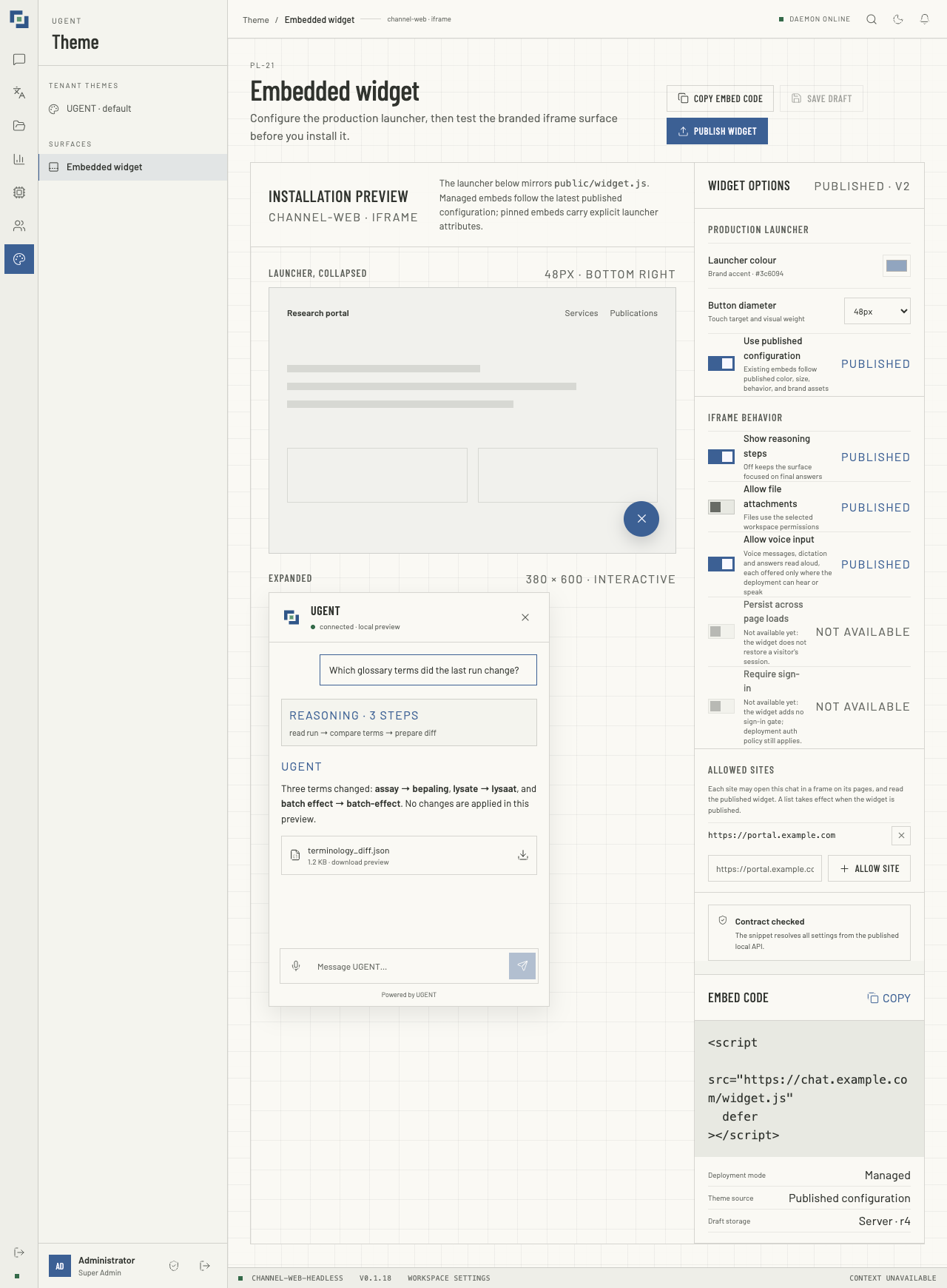
The widget is one script tag on a web page. It adds a round launcher at the bottom right, which opens the workspace's chat in a panel above it.
| Option | What it does |
|---|---|
| Launcher colour | The button's colour. While Use published configuration is on, it is the Brand accent, and cannot be changed here: the published theme's accent, or, with no theme published (always so on a brand that cannot publish), the brand's own. Off, it is the colour you choose. |
| Button diameter | 40px, 48px, 56px or 64px. |
| Use published configuration | On: the launcher takes the Brand accent, and Embed code gives the short tag. Off: it takes the colour you choose, and the tag pins colour and size. |
| Show reasoning steps | Off: each message sent from the widget asks the agent to leave its thinking out, and the panel shows no Reasoning block. |
| Allow file attachments | Off: no Attach files button. |
| Allow voice input | Off: the panel offers no voice message, dictation, call or Read aloud. On, each still appears only where the deployment can hear or speak. |
| Persist across page loads, Require sign-in | Off and marked NOT AVAILABLE: the widget does neither, and both are published off whatever was saved. |
The four options above that are marked PUBLISHED take effect when the widget is published. Beside Widget options, the studio says whether its draft is the published widget: Unsaved changes, Not published yet, Published · v2, or Draft differs from published v2. Installation preview shows the launcher and its panel, 380 × 600, on a sample page; it sends, records and uploads nothing, and on a real page the panel holds the workspace's own chat.
- Save draft keeps the options on the server. Pages that show the widget do not change.
- Publish widget publishes the options as the screen shows them, saved or not. Each page that shows the widget reads them when it loads, and so does the chat inside its panel.
Until a widget is published, the launcher is drawn in the Brand accent and is 48 px across, and its chat offers reasoning, attachments and voice.
Put it on a page
Copy embed code, or Copy beside Embed code, copies the tag. With Use published configuration on, Deployment mode reads Managed and the tag carries nothing but the address and defer:
<script
  src="https://chat.example.com/widget.js"
  defer
></script>
With it off, Deployment mode reads Pinned overrides, and the tag adds data-color and data-size, such as data-color="#346a49" and data-size="56px".
- A pinned page keeps its colour and size when you publish others. What its chat offers still follows the published widget.
- The address is the one you opened the studio at. If people reach the workspace by another name, use that one. Keep
defer, or put the tag at the end of the page's body. The workspace must sit at the root of its origin: the script opens the chat at the root of the address it came from. - The panel may use the microphone, the camera and the clipboard unless the page's own policy forbids them.
- The panel is 380 × 600 px until resized by dragging its left edge, top edge or top-left corner with the mouse, from 280 × 350 px up to 90% of the window's width and 85% of its height. The browser remembers the size for that site.
- The script knows no brand. It draws the launcher in the colour the workspace answers, or the tag's
data-color; only when it cannot reach the workspace is the launcher a neutral grey. A tag that cannot tell which address it came from, such as one in a page opened from a file, loads nothing and says so in the browser's console. - No sample page comes with the workspace. Try the tag on a page of your own.
Which pages can show it
Every page of the workspace may be framed by the workspace's own origin alone, the same scheme, host name and port, as every response says with Content-Security-Policy: frame-ancestors 'self' and X-Frame-Options: SAMEORIGIN. A page on another origin can show the widget's chat once its site is allowed:
- On Embedded widget, under Allowed sites, type the origin of the page that shows the widget, such as
https://portal.example.com, and click Allow site. - Click Publish widget. The published list is in force at once, with no restart; a draft's list governs nothing.
An entry is an origin and nothing more, written as a browser writes it: https://, or http:// for localhost, 127.0.0.1 and [::1] alone; one host name, in lower case, in letters, digits, dots and hyphens; a port only when it is not the scheme's own; and no path, query, fragment or trailing slash. There is no wildcard: list each site. At most 20 sites may be listed, each once. An entry that breaks a rule is refused as you add it, saying how to write it, as in https://portal.example.com/ ends with a slash: write it as https://portal.example.com., and the server refuses a save or a publish that carries one.
What a listed site may do:
- Frame the chat. The chat and its sign-in, opened with
embed=truein the address as the widget opens them, may be framed by the listed sites too. Every other page of the workspace, an admin screen included, keeps'self': a listed site can frame the chat and nothing else. - Read the published widget. The launcher on a listed site's page reads the published colour, size and options: the workspace's answer names that site in
Access-Control-Allow-Origin, and never allows credentials. A page of an origin that is not listed cannot read it.
On a page of any other origin, the launcher appears and opens, but the browser refuses to show the chat in it, and the launcher, unable to read the published widget, is grey at the default size. With no site listed, every response keeps the headers above.
The frame signs in through a window of the workspace's own. No identity provider lets its sign-in page be framed, and a frame on another site's page is never sent the workspace's own session cookie, so the frame keeps a session of its own; see Signing in. The sign-in window's page, /embed/sign-in, may be framed by no page at all, the workspace's own included.
The server holds the published list in memory: where more than one server process serves the workspace, a site removed from the list still frames the chat on another process until it restarts.
On the workspace's own origin
A site's pages and the workspace can also share one origin, for example through one reverse proxy, which needs no listed site.
- Set the shared origin. The workspace's
APP_URLmust be the origin the site and the workspace now share, unless the proxy passes theHostheader through and the workspace trusts the proxy (TRUST_PROXY). Otherwise every signed-in request that changes something fails, sending a message included. The server answers CSRF check failed: origin mismatch; in the widget, Send seems to do nothing and the message stays in the composer. - Every script on that site runs as the workspace. Sharing an origin means any script on the site's pages can call the workspace's API as the person signed in there, and read what the workspace keeps in browser storage. Put the widget only on pages whose scripts you trust as much as the workspace itself.
- The panel still signs in through its window, and keeps a session of its own, as on another site: each request it makes says it is the panel's, and the server then reads the panel's cookie alone, from the workspace's own pages only.
Signing in
The panel signs in through a window of the workspace's own, then keeps a session of its own, in a cookie that belongs to the page around it:
- In the panel, click Sign in, or a single sign-on button. A window of the workspace opens, and the panel says Finish signing in in the window that opened. If the browser blocks the window, the panel says The sign-in window was blocked. Allow pop-ups for this site and press Sign in again, or open the chat in a new tab., beside Open in a new tab.
- Sign in in that window, with an access key or by single sign-on, as on the workspace's own sign-in page. A single sign-on button clicked in the panel goes straight on to that sign-on in the window, so the choice is made once. This signs you in to the workspace itself as well, and someone signed in there already skips the form.
- The window then asks, every time: Sign the chat in as your name and email, or Use another account, which signs the workspace out and shows the sign-in form again. Nothing reaches the panel without that click, and only for the account the button names.
- The window closes, and the panel shows the chat, signed in. The window handed it a code, good once and for one minute, which the panel exchanged for its session.
Clicking Sign in again while its window is still open brings that window forward.
- With Microsoft Entra ID, the first window comes back unable to reach the panel, and says Signed in, press Sign in again. Click Sign in once more: the second window finds you signed in and asks as above, without leaving the workspace.
- A sign-in that fails leaves the panel saying That sign-in could not be completed. Press Sign in to try again. The window says That sign-in could not be completed. Close this window and press Sign in in the chat again.
- The panel's session reaches the chat and documents alone: reading conversations and sending messages, voice and calls included, and reading and attaching documents, as far as the person's role allows. Everything else answers it 403, a Super Admin's session included. It reaches the workspaces and models the person's department and groups grant; a Super Admin's reach to every workspace and model stays with the workspace itself.
- It ends when the session it was signed in from ends, after eight hours at most, and at once on a key reset, a key change, an email change or a disable.
- Signing out of the workspace does not end it. The panel's cookie belongs to the page around it, where the workspace's own sign-out cannot reach it. On a computer people share, sign out in the panel itself (see What the panel shows); otherwise whoever opens the page next finds the chat signed in as you.
- Each page load opens a new chat. The widget does not reopen the last conversation; it is in the person's conversation list in the workspace.
Run one server process. The sign-in codes live in the memory of the process that made them. With more than one process, an exchange can reach one that never saw its code, and the panel says That sign-in could not be completed. Press Sign in to try again.
A host page that writes its own <iframe> and sandboxes it must allow scripts, same-origin, pop-ups and pop-ups to escape the sandbox, or the panel cannot open its sign-in window. widget.js does not sandbox its frame.
Supported browsers
The panel's cookie needs a browser that keeps partitioned cookies: Chrome and Edge 114 or later, Firefox 141 or later, and Safari 26.2 or later. Safari 18.5 to 26.1 keeps none, and neither does a browser set to block every cookie in a frame. After the exchange the panel checks that its session took. Where it did not, it says This browser keeps no sign-in inside an embedded chat. Open the chat in a new tab instead., beside Open in a new tab: the chat in a tab of its own, where you sign in as on the workspace itself.
What the panel shows
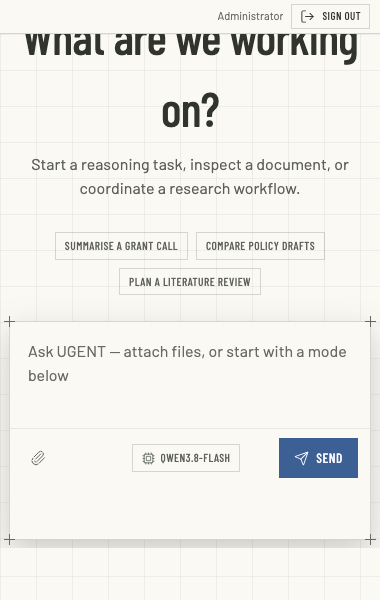
The panel opens on a new chat of the web workspace, without its rail, conversation list, top bar, status bar or floating dock, and stays the widget's: it shows the chat and its sign-in pages (sign-in, and the key recovery it links to), and nothing else. Sending the first message moves it to that conversation, still in the widget's view, and a move inside it to any other page of the workspace lands on the chat. That holds for someone who may not chat too, whom the workspace itself sends to a section they may open: in the panel they see Permission required.
A bar at the top of the panel names who is signed in, beside Sign out. Sign out ends the panel's session where it is, and shows its sign-in again, saying You have been signed out. On another site's page that ends the panel's session alone. On a page of the workspace's own site, where the panel and the workspace share their cookies, it signs the workspace out too.
What is in play: the conversation, the composer and the model picker, and while a turn runs the strip above the conversation with Stop. The modes are hidden while the panel is under 761 px wide.
What is not: there is no Snapshot, and Ctrl+K or ⌘+K stays the browser's.
Attach files is offered only to a role with
documents:upload, and the composer's hint mentions attaching only then.The published options are read by the chat in the panel for itself, less what the person's role removes. Until it has read them, and if it cannot, it offers none of reasoning, attachments and voice. It tries three times, each try given 3 seconds, so for at most 11 seconds. Meanwhile the composer says Reading this chat's options…, and nothing is sent: Send waits, as does a reply to a question the agent asks. If every try fails, the composer says This chat's options could not be read, messages go without those options, and the panel tries once more each time its page is focused or shown again.
What an answer shows in the panel. An answer's sources, its record cards, the pictures and files its text draws or links, and the files its sources open are shown to someone whose role lets them view files (
files:read), as in the workspace, and each only for the answer it belongs to. A plain click on an answer's link to a file opens the chat's viewer, which offers Download for what it cannot show. The panel cannot show:- any of these to someone whose role does not let them view files: their sources and record cards read as unavailable, as in the workspace;
- a file no answer of the conversation draws, links or cites, nor the file manager itself;
- a picture or a link inside a file it previews, in your own message, or in the reasoning;
- a fresh answer's sources, records and pictures until the page has stored the answer, which it does as the answer finishes;
- anything that opens a tab of its own, such as Open raw, a link opened with Ctrl or ⌘, or a file card's Open for a file the chat does not preview: that tab is the workspace itself, signed in only if you are signed in there.
What the options restrict
The options shape the panel. The person's role decides what they may do, in the widget and everywhere else.
- The server never checks the options. The chat in the panel reads the published widget, and the flags the script puts in the panel's address (
widget_reasoning,widget_attachments,widget_voice) can turn an option off, never on; nothing the server reads says a request came from the widget. Someone whose role lets them attach files can do so in the full workspace. - The options only take away. The widget offers a control only to a role that allows it:
chat:readopens the chat at all,chat:writelets a person write, send voice messages, dictate or call,chat:writewithdocuments:uploadshows Attach files, anddocuments:readgives Read aloud. The models are the ones the person's department and groups may use, as anywhere.
To keep someone from attaching files, take documents:upload from their role in People → Roles: Attach files is then offered to them neither in the widget nor in the workspace, and an upload is refused. No permission covers voice alone: whoever may write may use it.
When something looks wrong
- The panel opens empty, or shows the browser's refusal. The page is not on the workspace's origin, and its site is not on the published allowed sites. The browser's console names
frame-ancestors. - The launcher is grey and 48 px across. The script got no answer about the published widget within 1.5 seconds: the page is on another origin that is not listed, the workspace was slow or unreachable, or it answered with an error. A
data-colorordata-sizeon the tag still applies. - The panel offers no reasoning, attachments or voice. Its chat is still reading the published widget, and says Reading this chat's options…; it could not read it, and says This chat's options could not be read; or the published widget turns them off.
- Send does nothing for a few seconds. The panel is still reading its options, for at most 11 seconds, and the composer says so.
- A site is refused under Allowed sites. It is more than an origin, or not written as a browser writes it; the refusal says how to write it.
- "This theme fails text contrast" on publishing: one of the three pairs a publish is held to is under 4.5:1, and the message names it with its ratio. Save the draft, and change the colours it names.
- "Configuration changed since it was loaded. Reload the page before saving again." Someone saved or published since you opened the screen, or it is open twice. To keep an unsaved theme, Export it, reload, and Import it.
- "Invalid theme configuration" on saving or publishing: the theme, logos included, is over about 1.2 MB once stored, or a logo fails the server's own check. Use smaller, plainer logos.
- "UI configuration is unavailable" means the server cannot read or write its stored settings: the file was edited by hand or names another brand, or the server may not write to its folder. Pages keep the theme each browser last had, and widgets fall back to their defaults.
- "Too many requests, please try again later." One of four counts ran out, each over 15 minutes:
- the person's own 1,000 requests, counted wherever they are, so people behind one network address, such as an office's, do not share them;
- the 1,000 sign-in requests an address makes with no session, counted past the sign-in's own checks, so a page elsewhere cannot spend them;
- single sign-on's own 1,000 starts and returns from an address: each time a sign-in is started, and each time the identity provider sends the browser back;
- the 20,000 requests everyone at an address makes together, signed in or not.
RATE_LIMIT_PER_ADDRESSraises it, and it is the only limit on the widget's read of the published configuration and on the sign-in screen's read of which single sign-on buttons to show. The server keeps the broker's answer for a minute, or for 10 seconds when the broker did not answer, so a change to the broker's methods shows within a minute.