Document Translation
The Translate section of the web workspace translates a passage you paste, or a document from your library, with your approved terms and reference translations attached. Each translation runs on the server as a job, so it carries on after you close the page. This page is for the people who translate, and for those who look after glossary entries, references, domains and the workspaces and teams translations are shared in.
Document Author: Uni Zhu
Before you start
Each screen asks for its own permissions. A screen you may not open is left out of the Translate panel, and opened by its address it says Permission required.
| Screen | Opens with | Also needs |
|---|---|---|
| Translator | translation:read | translation:edit and chat:write to translate; documents:read for a library document; chat:read for the Model core menu |
| History | translation:read | Nothing more |
| Glossaries | translation:read | translation:edit to add, change, import or delete an entry; workspace:manage for Manage domains |
| References | translation:read | translation:edit to import one, or change one you may change; workspace:view to share one with a team |
| Library | documents:read | documents:upload to import, retry or set a document's language; documents:delete to delete |
| Teams | workspace:view | workspace:manage to create a team and, as its owner or admin, change it; users:read to pick members from the directory |
| Workspaces | translation:read | translation:edit to create one, and for Translate in this workspace |
| Analytics | analytics:read | Nothing more |
Languages and domains
Every screen offers the same twelve languages: English, Dutch, French, German, Spanish, Italian, Portuguese, Chinese, Japanese, Korean, Russian and Arabic. A glossary entry, a reference and a workspace are each in two different ones, a library document may be in one, and the server takes no other.
A domain is one of a list the deployment keeps, at first Research, Life sciences and EU grants. A glossary entry or a reference is of one domain, or of none, General, which suits every job. Domains that entries and references held before there was a list become domains of their own at the next start of the server.
With workspace:manage, Manage domains on Glossaries looks after the list:
- Add domain adds the name typed under New domain: one line of at most 60 characters, with a letter or a digit in it. The dialog shows what it is stored as, such as
clinical-trialsfor Clinical trials, which never changes. A name another domain has, in any case, is refused, and so is one that would be stored as another's is. - Rename (the pencil) changes only how a domain reads, and the up arrow moves it up the list the selects follow.
- Deactivate keeps a domain on everything that has it, and offers it for nothing new; Reactivate brings it back. A domain is never deleted.
Translate
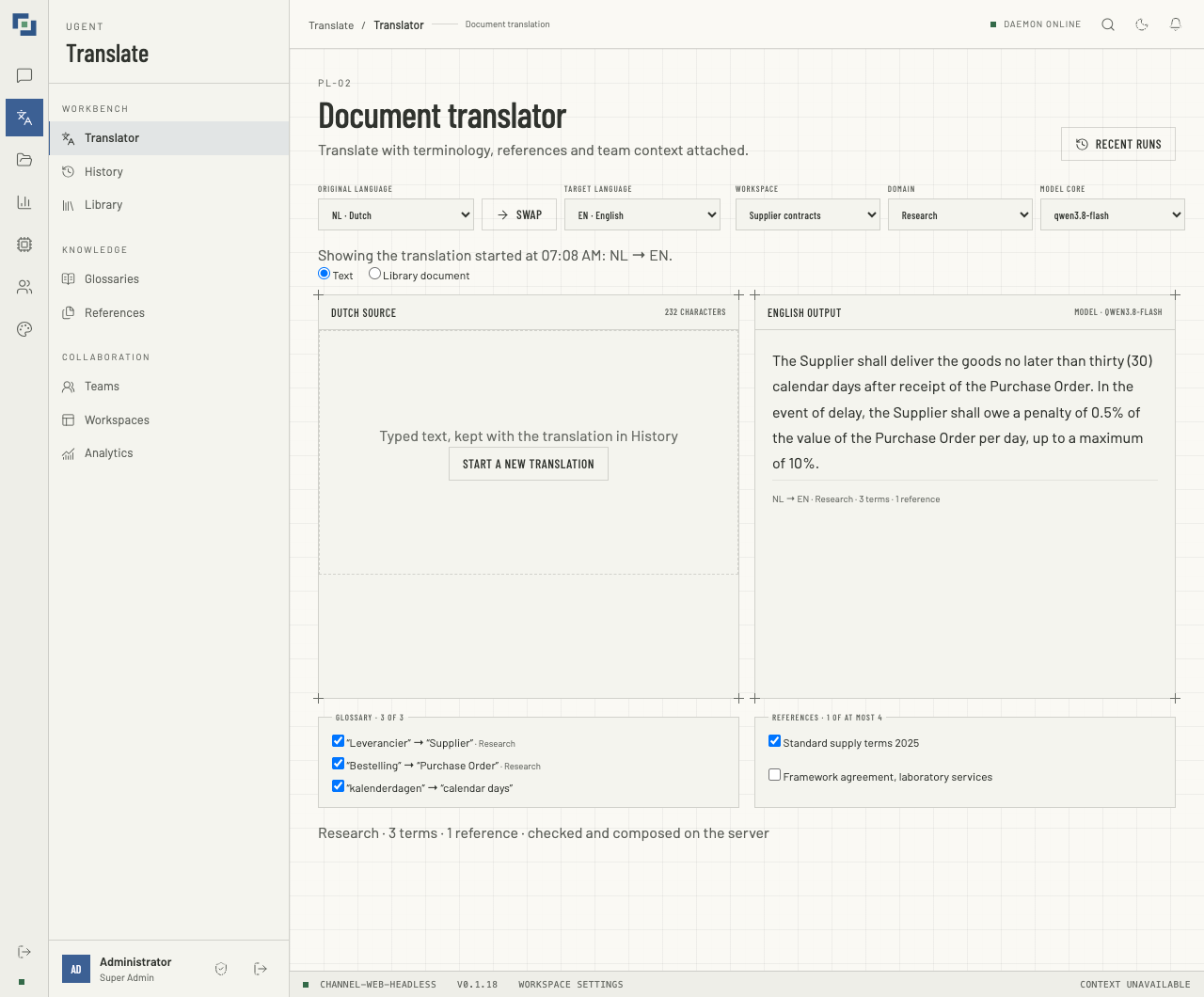
- Open Translate → Translator.
- Choose the Original language and the Target language; choosing one equal to the other swaps the two. A change of language replaces the text only while it is a sample sentence or blank, with the new language's sample where it has one (Dutch, English, French, German and Spanish do): what you typed or pasted stays. Swap trades the output and its source; with no output yet, it keeps your text and shows no output.
- Choose a Domain, one of the active ones, or leave No domain. The domain is written into the instructions, and decides which entries and references suit the job.
- Choose a Workspace, if the menu is shown: one of the translation workspaces you reach, to file the run in, or No workspace. Translate in this workspace on a workspace's page opens the Translator with it chosen.
- Choose a Model core, if the menu is shown. It lists the models the agent serves that you may use, never
ugent-default, and starts on the model you last chose here while it is offered, else the default your department or group names, else the first. This browser remembers your choice apart from the chat's. Without the menu, the job names no model and the server chooses: your department's or group's default if the agent serves it, or else the first model you may use. - Choose Text and paste over the sample sentence, or Library document and pick one of your Ready documents; its text then fills the pane, read-only. A document whose language is set sets the Original language to it. The pane's head counts the characters against the 24,000 one job translates; past that, Translate document is off, and the line beside it says Longer than the 24,000 characters one job translates.
- Check the Glossary panel. It lists your active entries for exactly this language pair that are general or of the job's domain (with No domain, every entry for the pair), all ticked. Untick any to leave out.
- Tick up to four references in the References panel.
- Click Translate document.
The output pane's head names the model, or says Queued · waiting to start while the job waits its turn; the answer appears in the pane, and a closing line sums up the screen's choices: NL → EN · Research · 3 terms · 1 reference. Changing a choice clears the pane, but the job goes on: its answer still fills the pane when it arrives, under a line for the new choices. Open in History shows a job under its own languages and source: a typed source reads Typed text, kept with the translation in History, and a library document is named.
The job gives the model the languages and the domain; each ticked entry, as a term to translate exactly so; the first 500 characters of each side of each ticked reference, as style guidance only; and the text, marked off, with the instruction not to follow any instructions inside it. Nothing in the app checks the output against the entries. Each job is a conversation of its own, with no tools, no memory and no workspace search.
An entry that cannot be given to the model (a term over 200 characters, or one holding a line break, a tab or another control character) is listed with its reason and cannot be ticked, and so is a reference with no translated side. One job carries at most 200 entries; when more suit, the panel lists the newest 200 and says so.
What the server checks
The server checks every choice before it queues anything:
- the languages: two different language codes;
- the source: text that is not empty, or a library document you may read whose text is ready, and, where its language is set, in the job's original language; at most 24,000 characters either way;
- the entries: at most 200, each yours, active, for the exact language pair, general or of the job's domain, with each term one line of at most 200 characters, and no source term given two different translations;
- the references: at most four, each yours or one of your teams', for the exact pair, general or of the domain, with both its sides;
- your queue: fewer than three of your translations waiting or running;
- the agent workspace: one your groups grant, if the request names one;
- the translation workspace: one you reach, if the run is filed in one;
- the model: one your department or group may use, and the agent serves.
A refusal stores nothing. A full queue is refused on its own. Problems with the source, the entries and the references are listed together, each naming its entry, reference or document (The source for typed text), as in This translation cannot run: the document is longer than the 24,000 characters one job translates. A workspace or model refusal comes alone: a translation workspace out of reach, or one that does not exist, is That workspace is not one you can file a translation in.
Just before a waiting job is sent, the server checks again that your account is still active and that you may still translate, read its document and use its model. A job that no longer passes fails with the reason, as Your account was disabled before this translation could run. does for a disabled account. It is never sent with another model.
While a job runs
- Closing the page does not stop it. The job's id goes in the address, so a reload follows it, and opening the Translator again takes up your newest job still waiting or running, if it is among your five newest jobs: Following the translation started at 02:05 PM: NL → EN, supplier-contract.pdf. Start a new translation leaves that job running and clears the screen.
- Three at a time. You may have three translations waiting or running. Yours run one at a time, and the server runs only a few at once for everyone, so a job may wait before it starts.
- Time limits. A run has at most 14 minutes, and up to five more in which the server waits on the agent's own record of the turn. A job still unfinished then is interrupted, and its turn stopped. An answer over 200,000 characters fails the job.
- A restart. When the web server comes back, a job that was running is settled from the agent's record of the turn, and a waiting job runs.
- A disabled account stops it. While a job runs, the server reads its owner's account about every 45 seconds. Once the account is disabled the run stops within a minute: its turn is stopped, the text that had arrived is kept, and the job fails with Your account was disabled while this translation ran. The same holds for a job followed from the agent's record after a restart.
Stop is there while a job waits or runs. A waiting job is cancelled at once. For a running one the server asks the agent to stop the turn: the output pane's head says Stopping… until it has, then Translation stopped. appears below the panels, with any text that had arrived still in view. You may always stop your own job; one you can no longer read, such as a run filed in a workspace you have since left, says Stop requested, all the screen can know of it.
Retry is there for a job that failed or was interrupted. It first asks the agent how the last attempt ended: an answer the agent finished is kept, and a turn still going is followed. Only otherwise does the job run again, as first sent, with the same text, entries, references and model, counting towards your three. To change any of those, start a new translation.
A colleague's run, filed in a workspace you share, opens read-only, with no Stop or Retry: Started by someone else in a workspace you share: you may read it, not stop or retry it.
The library
The library keeps the documents you import for translation, each with its extracted text, and lists only your own. It is separate from Files, and chat and search do not see its documents.
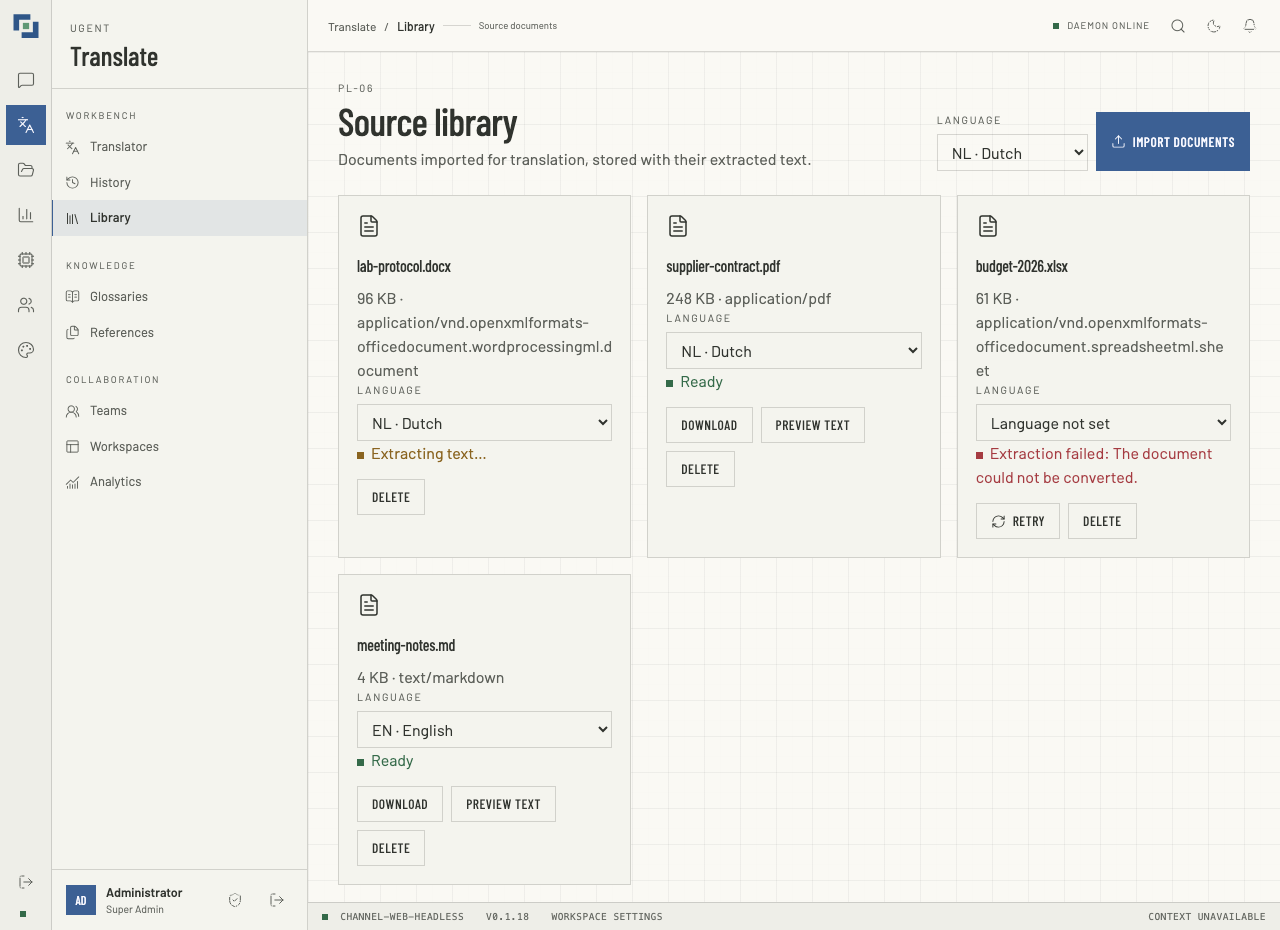
- Open Translate → Library, choose the Language the files are in, or leave it Not set, and click Import documents.
- Choose one or more files. They are imported in turn, and a note says of each whether it was imported, is already in the library, or was not imported, and why.
| Files | Text |
|---|---|
PDF, Word, PowerPoint and Excel: .pdf, .doc, .docx, .ppt, .pptx, .xls, .xlsx | Extracted on the server, in the background. |
Text and Markdown: .txt, .md | Used as it is; it must be UTF-8. |
A file may be at most 50 MB, and not empty. Importing the same file again keeps the first copy, under its first name and in its own language: the note says when the language chosen for the import was not applied, and that the card changes it. Each card shows the file's name, size and type, its Language, which you change there with documents:upload, and where it stands:
| Status | What it means |
|---|---|
| Ready | Its text exists. The Translator offers it, and Download and Preview text (the first 20,000 characters) appear. |
| Waiting to extract | Queued. Library documents are extracted one at a time, sharing the server's extraction with the workspace's own files. |
| Extracting text… | Being extracted now. |
| Extraction failed: and why | It produced no text, took too long, or could not be converted. Retry tries again. |
| Not supported on this server: and why | Text extraction is not configured here. Retry once it is; a restart queues these again too. |
| Never stored: import it again | A card from before the library kept files. |
A translation from a document whose language is set must be from that language. While a document waits or extracts, the page reads the list again every five seconds. Delete asks first, then removes the document and its text, and every translation made from it with its History row, a colleague's included, since each holds a copy of its text. As the question says, such a translation is kept nowhere else. One still running is stopped. A document longer than 24,000 characters cannot be translated in one job: split it and import the parts.
Glossaries
A glossary entry pairs a source term with its preferred translation, for one language pair and, optionally, one domain. Entries are personal: there are no named glossaries, and your jobs use only your own entries. They are your approved terms, as the top bar calls them.
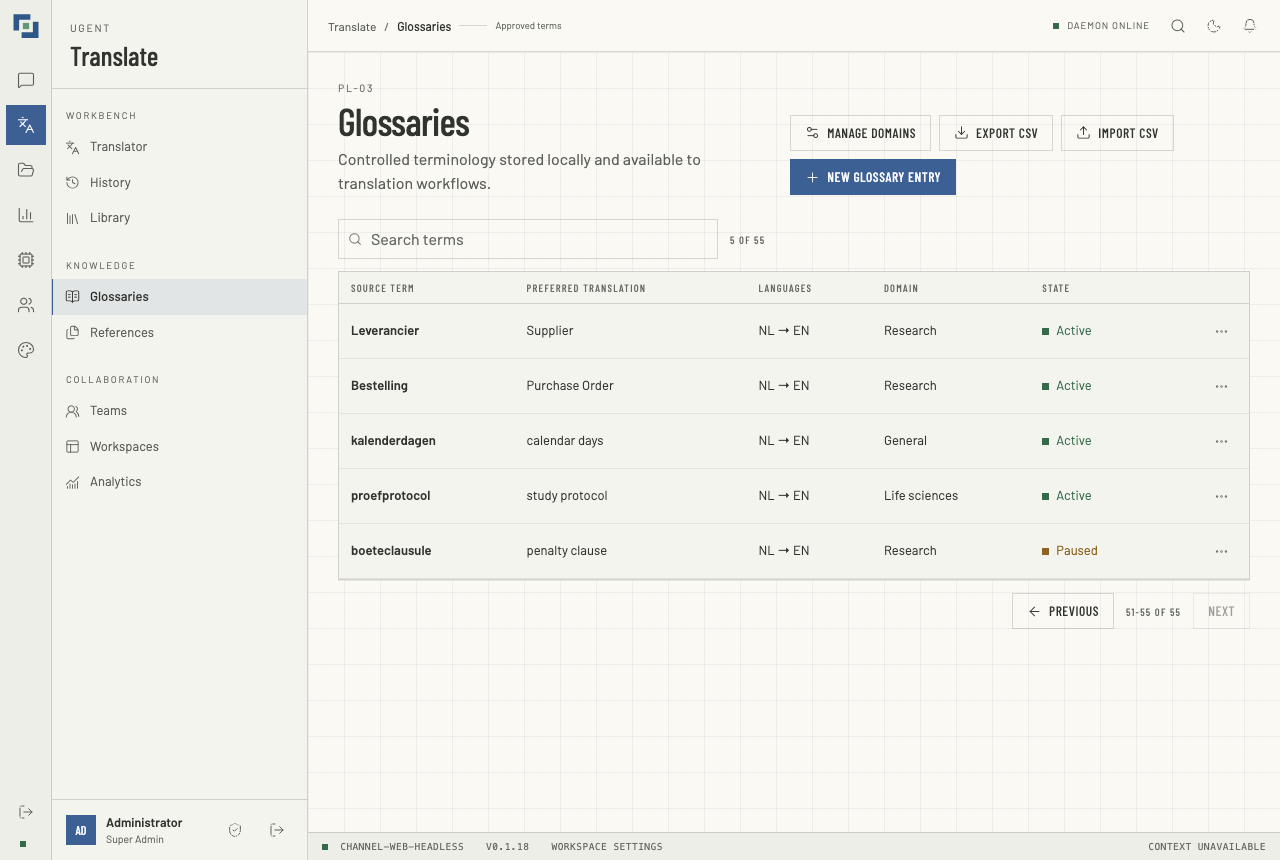
- Open Translate → Glossaries and click New glossary entry.
- Fill in Source term and Preferred translation, and choose the Source language and Target language, two different ones.
- Choose a Domain, or General (no domain) for an entry that suits every domain, and add Notes if you like.
- Click Create entry.
The list is searched by either term (Search terms) and paged 50 at a time, with the total, however many entries there are. Each row shows its languages, its domain (General when it has none) and its state: Active, or Paused for an entry the Translator does not offer. Its More actions menu (⋯) offers:
- Edit, in the same dialog. Save entry sends only what you changed, so an entry keeps a language or a domain the selects no longer offer, shown as such, until someone changes it.
- Pause, which no translation then uses, or Resume.
- Delete, which asks first.
An address of one entry, /translate/glossaries/<id>, lists that entry alone, with Show every term; a search shows every term again.
Import and export
Export CSV downloads every entry as glossary-<date>.csv, and Import CSV reads such a file. Its first row names the columns, in any order: source_term, target_term, source_language and target_language, and, if you like, domain, notes and active. A file whose first row holds a semicolon and no comma is read at semicolons, as Excel saves CSV where a comma is the decimal mark, such as in Dutch, German and French. So an export imports again, as long as every entry's domain is active and its languages are among the twelve: each row is checked as a new entry.
- The whole file is checked before anything is imported, each row as an entry made here is: both terms; two different languages, by their codes in any case, such as
nlorEN; a domain that is active, named as it is stored, such aslife-sciences, or by its name, or blank for General; andactive1, 0 or blank, which is 1. The first row it refuses is named as a spreadsheet numbers it, the header being row 1, and nothing is imported: “terms.csv” was not imported. Row 7: … - A file is sent 1,000 entries at a time. A part refused after the check, as for a domain deactivated meanwhile, is said, with how many were imported and the row. Import CSV waits until the domains have been read.
- Nothing in a cell runs as a spreadsheet formula. A cell starting with
=,+,-or@, a tab or a line break, or a full-width=,+,-or@, is written with a leading'; so is the same character after a;or a line break inside a cell, where a spreadsheet that splits on;, as Excel does in Dutch, German and French, starts a field of its own. An import takes each such'off again, so a round trip is exact. - The file starts with a byte-order mark, so a spreadsheet reads a Chinese, Japanese, Korean, Russian or Arabic term as written.
The export says when the glossary changed while it was being exported, so an entry may be missing: export again for an exact copy.
References
A reference is a passage together with its approved translation: a parallel text that shows the model the register and phrasing to keep. Your jobs may use your own references and your teams'.
- Open Translate → References and click Import reference.
- Give it a Title, and choose its Source language, Target language and Domain.
- Paste the Source text and its Translation, or read either from a text file, such as
.txt,.md,.csv,.jsonor.html. A source read from a file gives the reference its name, where you typed no title. A PDF or Office file is refused: to translate one, add it to the library. - If you are in a team, choose it under Share with team, or leave Not shared.
- Click Import reference.
Only the first 500 characters of each side reach a translation, as the dialog says, and a reference with no translation is kept as source only. Each card shows its direction and domain, its title, its opening words, the team it is shared with, and whether it is Usable in a translation, with both sides, or Source only. On a reference you may change, your own or one shared with a team you are an owner or an admin of, Add translation gives a source-only reference its translation, and Share with team shares it with one of your teams or stops sharing it.
The Translator lists a source-only reference greyed, it has no translation to learn from: only a reference with both sides can be ticked.
History
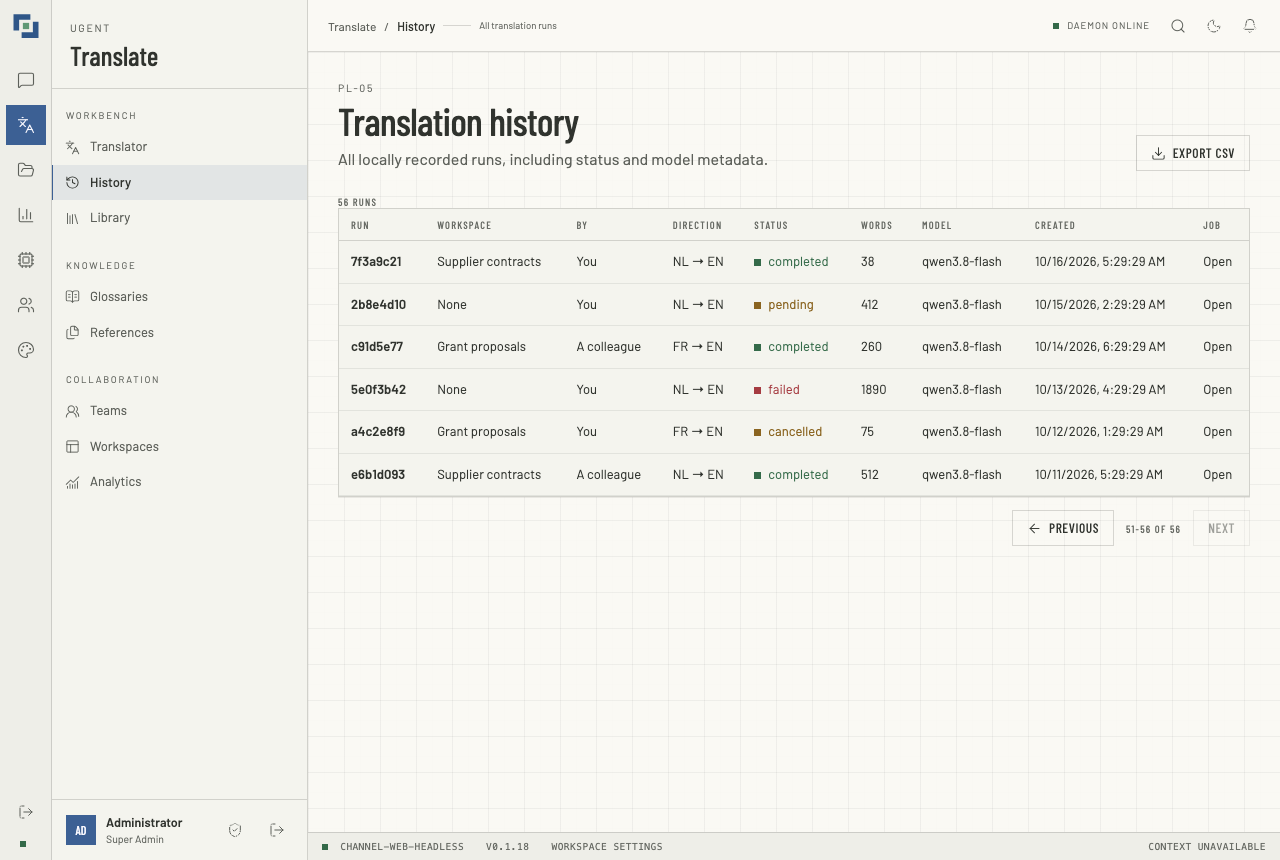
Translate → History, or Recent runs on the Translator, lists every run you may read, newest first, 50 a page, with how many there are: your own runs filed in no workspace, and every run filed in a workspace you reach, whoever made it. Each row gives Run; Workspace, the one it is filed in, or None; By, You or A colleague; Direction, Status, Words in the source, Model, Created, and Job, whose Open shows the run in the Translator, with Stop or Retry where they apply. A job opened this way shows its output, but not typed text.
A run is pending while it waits or runs, and then completed, failed or cancelled. An interrupted run stays pending until a Retry settles it; a retry updates the same row.
Export CSV downloads every run listed as translation-history-<date>.csv, with the columns id, workspace_id, workspace, yours, source_language, target_language, status, word_count, model, created_at, source_text and translated_text. workspace_id and workspace are blank for a run filed in none, and yours is 1 for your own run and 0 for a colleague's. For typed text the last two hold the text and, once completed, its translation; for a library document, its file name and nothing. It is written with the glossary export's guard against formulas, which covers every line of a multi-line cell: in a spreadsheet that splits on commas, a line of a translation that starts with -, +, = or @, such as a bulleted list, shows a leading '. The export says when runs were added or removed while it read them. A run made from a library document is listed only while you may read the document.
Workspaces and teams
A translation workspace files runs together, and a team shares workspaces and references among its members. A workspace here is not the agent's workspace that a chat runs in.
Workspaces
Translate → Workspaces lists the workspaces you reach: those you own, and those linked to a team you are in. New workspace creates one, with a Workspace name, a Description, and its Source language and Target language, and you own it. Enter workspace shows its Language pair, its Translations, counted as History counts them for you, and when it was Created; Translate in this workspace opens the Translator with its Workspace menu set to it. An address naming no workspace you reach says so.
A run filed in a workspace belongs to the workspace:
- Who reads it: everyone who reaches the workspace, in History and in the Translator; a colleague's run opens read-only, and says how many glossary entries and references it used, but not which, since each is its owner's. A run filed in no workspace is its runner's alone, and so is one filed in a workspace that no longer exists, which History shows as filed in None.
- Who acts on it: its runner alone retries, changes or deletes it, while they reach the workspace, and may always stop it.
- Leaving: someone who no longer reaches the workspace, because they left or were removed from its team, or it was unlinked, no longer reads its runs, their own included.
- Deleting the workspace: its owner, through the API (
DELETE /api/projects/<id>; the screen has no button), hands its runs back to their runners and its library documents to their uploaders, filed in none. - Its document: a run made from a library document is readable only while its reader may read the document, and deleting the document deletes the run, whoever made it.
Teams
Translate → Teams lists the teams you belong to, with their numbers of members and workspaces and your role in each. Create team asks for a Team name and a Description, and makes you its first owner. A team's name opens its page:
- Members, each with a role: owner, admin or member. An owner or an admin who holds
workspace:manageadds a member, picked from the directory withusers:reador else typed as the identifier or email they sign in with, changes a role, or removes one. Only an owner makes or changes an owner, and a team always keeps one: when its only owner's account is deleted, another member becomes its owner, as Disable, enable or delete says. A disabled account, or a name no account has, is refused alike: No one with that identifier or email can be added. - Leave the team, on your own row: any member may leave, with no permission asked, except the last owner.
- Workspaces linked to the team, which every member reaches. An owner or an admin who holds
workspace:managelinks a workspace they own, or unlinks one. - Shared references: those shared with the team, for any member's jobs.
A change of role, a removal, a leave and an unlink each ask first. A removal or a leave says the person will no longer read the runs filed in the team's workspaces, their own included, unless they reach a workspace another way. An unlink says the members will no longer read the workspace or the runs filed in it, their own included, unless they reach it another way. A change of role says what the role may do.
Nothing else follows from a team: entries are each person's own, which models you may use comes from your department and groups in the user directory, and your jobs run on an agent workspace your groups grant, or on the default agent.
Translation analytics
Translate → Analytics, also at Insights → Translation analytics, counts the runs of the whole deployment, on the server, with analytics:read alone. It holds counts only: no run's text and no one's name. Choose a Report period: Last 7 days, Last 30 days (the default), Last 90 days, All records, or Custom range, with From, To and Apply range. Each end is a whole day, in UTC.
- Runs completed, with how many failed, were stopped, were cut off and are in progress, each counted apart.
- Words translated: the words in the source of each completed run.
- Median run time: of completed runs, from their creation to their end, waiting included.
- Words translated by language pair shows the five pairs with the most words, and Run completion the share of runs that completed, with the counts of each ending. Review acceptance shows —: nothing records it.
When something looks wrong
- The Translator says Read-only · translation:edit is required to run a translation. Your role lacks
translation:edit. Translating needschat:writetoo: without it, Translate document answers Permission denied: chat:write. - Translate document stays off. The source is empty, longer than the 24,000 characters one job translates, or no document is chosen.
- 3 of your translations are already queued or running; … Wait for one to end, or open one from History and Stop it.
- An entry you made is not in the Glossary panel. It is paused, for another language pair or of a domain other than the job's, or it is older than the newest 200 entries that suit.
- A refusal says a term has 2 translations. Two ticked entries give that source term different translations: untick one. With No domain, every domain's entries are ticked.
- The workspace the address names is not one you can translate in, so this run is filed in none. You do not reach that workspace, or it is gone.
- A run you made is no longer in History. It is filed in a workspace you no longer reach, or made from a library document you may no longer read.
- The translation could not be started; Translate again to resend it. Press Translate document again without changing anything: the server answers with the job the first press started, if it did, not a second.
- Stop not confirmed: The translation had not reached the model yet; press Stop again. The turn was still on its way to the agent. Press Stop again.
- A job failed because its model is no longer available to you.Retry keeps the model, so start a new translation and choose another.
- The model cannot say yet how the last attempt ended; try again shortly. Press Retry again in a moment. Until the agent can say, nothing runs a second time.