Runtime Tools and Insights
The web workspace's Runtime section looks at the agent behind it: the models it offers, whether its web channel answers, a console for its model commands, and the configuration files kept with the workspace's files. Insights reports, for administrators, what the agent has done and what that cost, and Cloud connections, under Files, keeps files you pick in a cloud account in sync with the workspace. This page is for whoever runs the workspace; who sees what says what each screen needs.
Document Author: Uni Zhu
Who sees what
The menus show only the screens your role allows, and the server checks the same permission on every request behind them.
| Screen | Where | Needs |
|---|---|---|
| Models | Runtime → Models | chat:read |
| Health | Runtime → Health | workspace:view |
| Commands | Runtime → Commands | workspace:manage |
| Configurations | Runtime → Configurations | files:read to view, files:manage to save |
| Runtime telemetry | Insights → Runtime telemetry | telemetry:read |
| Cloud connections | Files → Cloud connections | files:read to view, files:manage to connect, import or disconnect |
Runtime telemetry is for administrators. No stock role holds telemetry:read, so only a Super Admin sees it until someone grants it to a role on Roles. analytics:read opens translation analytics alone, and the Insights button in the rail opens that for someone who holds only it.
The Super Admin role passes every permission check, but not file confinement: with confinement on, a Super Admin needs an Administrator row to open Configurations, and a folder of their own to import from Google Drive. While the workspace is locked, no row opens Configurations and no import finds a folder. A screen opened without its permission says Permission required. Runtime → File confinement has a page of its own, File Confinement. Models, Health and Commands ask the agent that answers your new conversations, through the web server; Configurations and Runtime telemetry read files on the web server's own disk, and Configurations asks the agent which folder it works in.
Models
Runtime → Models lists the models you may choose, which the chat's and the translator's model pickers offer too: a card for each, with the model's name, the provider and instance that serve it, and Owner, the same pair as the agent spells it. Refresh cores asks again.
The agent lists the models a web user may choose; see Per-User Model Selection. Where People → LLM access grants models to departments and groups, the web server keeps only those granted to yours, and the page says Filtered. A Super Admin, and anyone whose department and groups hold no grant, sees the whole list.
- Degraded catalogue: the agent's web channel answered but could not reach the agent, so on an unfiltered list the one card is its placeholder,
ugent-default, marked Fallback. On a filtered list the placeholder is dropped as well, so Degraded catalogue appears above No selectable models, whose message about grants is then wrong: the agent is unreachable. Check that the agent daemon is running. - No selectable models on a filtered list: your grants name models the agent no longer offers, or the catalogue is degraded.
Health
Runtime → Health shows the agent's web channel, channel-web, as the daemon indicator in the top bar reads it: one health check serves both, every 30 seconds and at once when the tab is shown again, never in a hidden tab, each given up after 10 seconds. The channel answers from its own process: an answer means it is up and took the web server's key. Nothing behind it, such as the models' providers or the context engine, is tested; the Agent row says only whether the agent behind the channel answers.
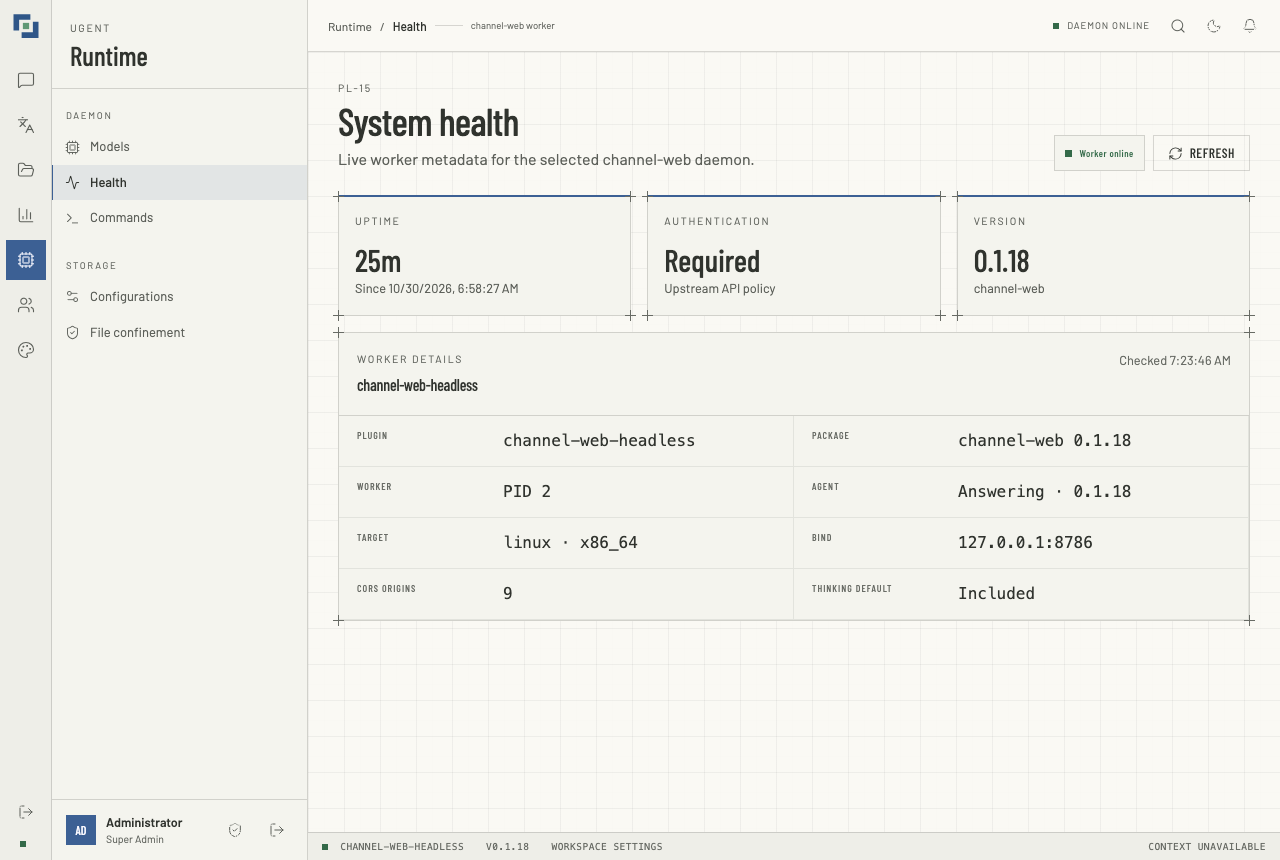
The badge beside Refresh reads Worker online when the channel answered, and Worker offline when it did not, or not within 10 seconds, with The worker did not answer its health check. and Retry. It reads Checking worker before the first answer, and once the last answer is more than 75 seconds old, two checks and a margin, so an old answer never passes for a current one. Refresh asks again now, the Agent row included, unless a check is already under way. The cards show the last answer; a failed check clears them. Checked, at the top of WORKER DETAILS, says when the answer shown came.
| Card or row | What it says |
|---|---|
| Uptime | How long the worker has run, measured against your computer's clock, with its start time under it. |
| Authentication | Required when the channel asks every caller for a key. Open when it has none set and takes every request as its operator's; see Keys and callers. |
| Version | The version of the channel's package, named under it. |
| Plugin, Package, Worker | The plugin id, the package with its version, and the worker's process id. |
| Agent | Answering, with the agent's version, when the agent behind the channel answers its status; Not answering when it does not, or not within 10 seconds; Checking until it first does. The web server asks it with its own key, and passes on the version alone. |
| Target, Bind | The operating system and processor it was built for, and the address and port it listens on. |
| CORS origins | How many browser origins may call it directly. |
| Thinking default | Included or Excluded: whether a streamed answer carries the model's reasoning when the caller does not say. The web workspace's chat always says. |
Commands
Runtime → Commands runs the agent's model commands, /model and /models, and refuses any other with The runtime console only accepts /model and /models commands. None of them asks to be confirmed.
- Type a command, or click /models, /model list or /model clear to fill one in.
- Click RUN. The log adds the time, the command, its status, and the reply:
completedorrejectedwith the agent's answer, orerrorwith the reason the request failed. The log lives on the page: Clear history empties it, and so does leaving.
The commands are those of Per-User Model Selection: /models lists the models the agent offers, /model <name> stores your choice, /model clear goes back to the default, and /model check <name> says whether a model may run a turn, storing nothing.
- A command runs as you. The web server sends it with your identity, whatever the page sent, and no conversation, so
/model <name>changes your model alone. - A listing names what you may use. Where your department and groups restrict your models, the web server answers
/models,/model list,/model lsand/modelalone itself, from the models you may use, in the agent's own words: Available models:, then each provider's. Otherwise the agent lists every model it offers, all of which you may use. - Choosing a model you are not granted is refused: This model is not available to your department or group.
Configurations
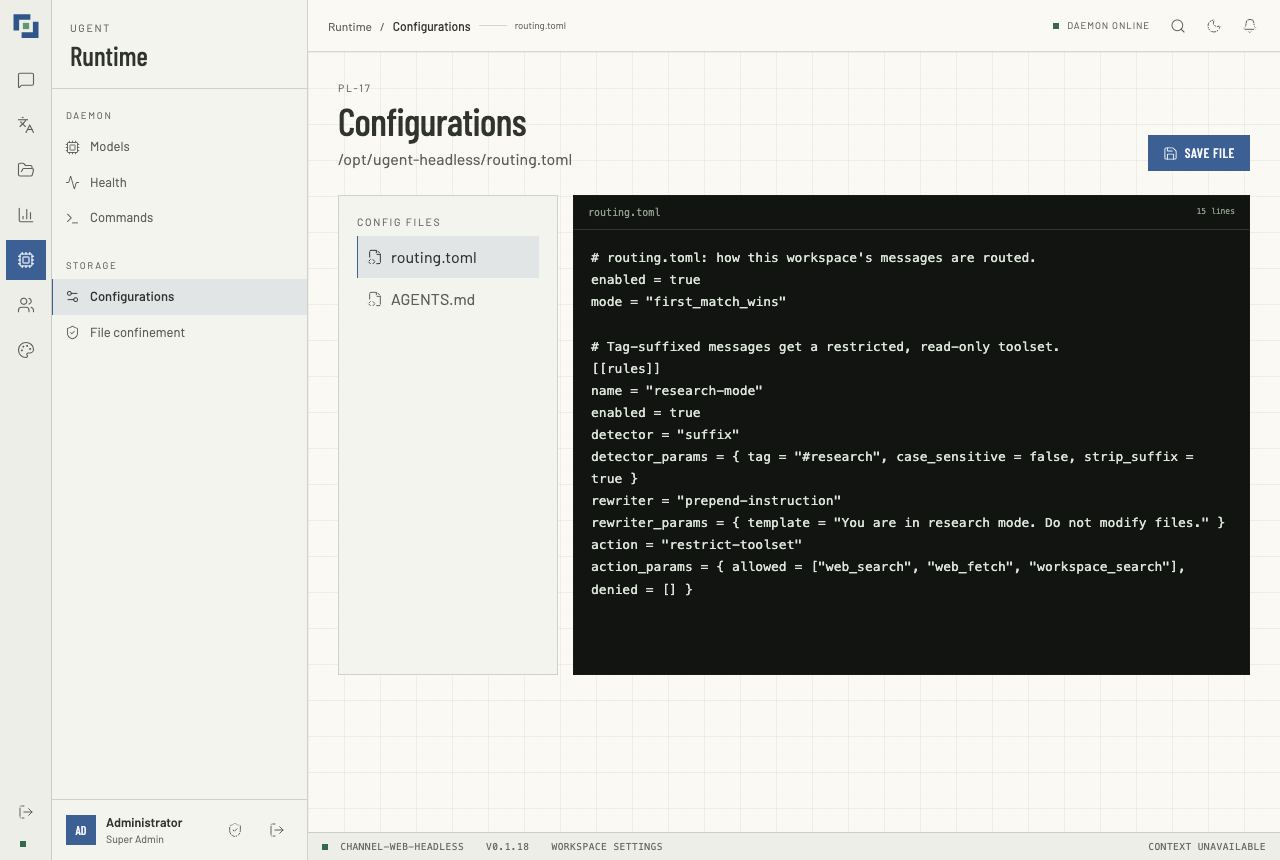
Runtime → Configurations edits, in place, the two files the agent reads from the workspace's root. Files will not open either of them.
| File | What it is |
|---|---|
routing.toml | The agent's message routing. |
AGENTS.md | The agent's instructions for this workspace, which can also hold the record types block. |
Earlier versions also offered translation.toml, models.toml and telemetry.toml, which nothing read; they are no longer here.
Where the files are is decided by the web server's own settings: UGENT_ROUTING_PATH where its operator set one, else a routing.toml in the folder the server runs in, or in that folder's .ugent, else ~/.ugent/routing.toml of the account it runs as. The folder that holds routing.toml, or that holds its .ugent folder, is the root of the workspace's files, Shared files in Files, and AGENTS.md sits there. The heading shows the path of the file open, and the top bar names the file. When the agent says it works in another folder, the page warns, Another folder: These files are in …, but the agent works in …, so what is saved here may not be what it reads. When the agent does not say, the page says so.
Viewing needs files:read and, with file confinement on, a row marked Administrator in File Confinement; anyone else is told This is department-level configuration. While the workspace is locked, an Administrator is refused too, and everyone is told The workspace is locked: … instead. Without files:manage the editor is read-only.
- Choose a file under CONFIG FILES, and edit it.
- For
AGENTS.md, check its record types in the Record types panel under the editor; see Record Cards. - Click Save file. It saves only the file shown, and the page says routing.toml saved., naming it. An edit to the other file waits in the page, unsaved, and nothing warns you if you leave with one.
What the server checks. Each file is at most 1 MB. AGENTS.md is checked for size alone. routing.toml must be valid TOML that passes a check of its settings, rules and providers, by the names the agent registers:
| Part of a rule | The names it may use |
|---|---|
detector | prefix, suffix, complexity, decision_classify, decision_guard, out_of_scope, intent-gate, noop |
rewriter | prepend, prepend-instruction, enrichment-prepend, noop, or none: leave the key out |
action | restrict-toolset or restrict_toolset, intent-reject, delegate-research, tool-enrich, noop |
Any other name, such as lazygraph-enrich or rewriter = "none", is refused with the names above, since the agent would skip it. Each part needs its parameters: a decision_classify detector two categories, each with a description, and a min_probability between 0 and 1 if it sets one; a decision_guard detector at least one check; a restrict-toolset action lists of tools in its allowed and denied, where it sets them; a tool-enrich action a provider that exists. A source's name is optional. A refused file is not written: the page says Syntax validation failed or Semantic validation failed and lists each finding under it, with the field it is about, such as rules[0].detector.
A routing.toml that does not parse on disk is said so when the page opens, Does not parse, with the parser's reason; correct it in the editor and save.
How a change takes effect. The web server writes the file and, unlike File confinement, signals nothing. A save reaches the agent only if this routing.toml is the one the agent reads, which Another folder warns of when the folders differ. The agent takes the first routing.toml it finds: in its workspace, then in the workspace's .ugent folder, then in ~/.ugent of the account it runs as. It reads AGENTS.md from its workspace. When the files match, the agent notices a changed routing.toml within about five seconds and rebuilds (Hot Reload), which stops work it had delegated (A Reload Stops the Old Runtime), and it reads AGENTS.md again for every turn, so the next message in any conversation follows the new text.
Runtime telemetry
Insights → Runtime telemetry reports what the agent did over a window of time and what it cost. It needs telemetry:read; see who sees what. No command the agent ran reaches the browser: the report lists none, and each line of its live stream (/api/telemetry/stream) leaves out the command, the error message, and the metadata that holds a failed tool call's arguments.
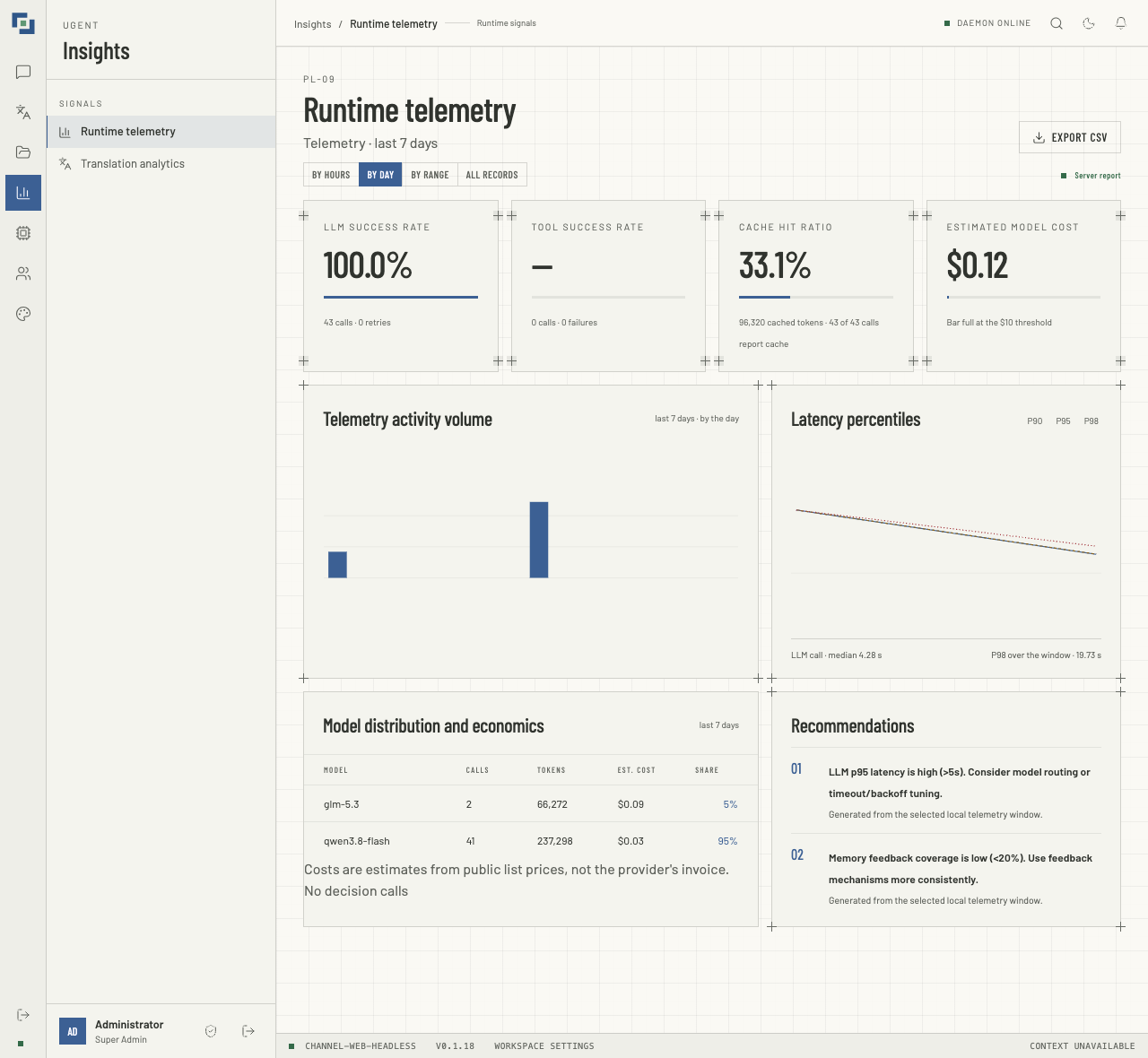
The figures come from the agent's telemetry log, which the web server reads from its own disk: one log, whichever agent you chat with, holding everyone's turns, not only yours. Choose the window: By hours, the last 24 hours; By day, the last seven days, today included; By range, which first shows the range last applied (at first, the last seven days) and switches to From to To, both included, when you click Apply range; or All records. Days and hours are UTC. The report is worked out when the page opens and when the window changes. Server report beside the buttons says a report is shown; after you change the window, that is the previous window's report until the new one arrives. Awaiting data says none is shown: before the first report, or after a failed one.
| Figure | What it shows |
|---|---|
| LLM success rate | The share of model calls that did not fail, with the calls and retries counted under it. |
| Tool success rate | The share of tool calls that succeeded, with the calls and failures. |
| Cache hit ratio | The share of prompt tokens the provider served from its prompt cache, over the calls that report their cache use, which it says under it: No call reported cache, or the cached tokens and how many of the calls report cache. |
| Estimated model cost | The window's cost in US dollars, added up from the cost the agent records for each model call of a turn: an estimate, not your provider's invoice. Its bar is full at the $10 its label names. |
A figure with nothing behind it reads — and fills no bar: a window with no tool call has no tool success rate, rather than one of 0%.
Calls to the decision model (decision_classify and decision_guard rules, the decision gate) are not in the cost. A line under the model table counts them, with the cost their backend reported, and says how many reported no cost: those are left out, never estimated.
| Panel | What it shows |
|---|---|
| Telemetry activity volume | A bar for each hour with events in the log, for a window up to 48 hours, or for each day with events, for a longer one; the heading says by the hour or by the day. A bar is as tall as its model and tool calls, and one whose events include no calls still gets a short stub. Hours or days without events have no bar, so the bars are not evenly spaced in time. |
| Latency percentiles | The 90th, 95th and 98th percentile of how long model calls took in each of those hours or days (P90, P95, P98), each line broken where one had no call. Under it, the median and the 98th percentile of the whole window. |
| Model distribution and economics | The five models with the highest estimated cost: their completed Calls, their Tokens, prompt and completion, their Est. cost, and their Share of the calls in the table. Export CSV, at the top of the page, downloads it, with the guard the translation exports use, so no model's name runs as a spreadsheet formula. |
| Recommendations | Notes the server writes when a fixed threshold is crossed, such as calls failing more than 10% of the time, tools succeeding less than 85%, a cache hit ratio under 30%, slow calls, more than $10 spent, or plugin and swarm failures. Beside one that says the window holds no events, none is made from a figure with nothing behind it. |
When something looks wrong
- Health says Worker offline. Nothing answered at the agent's address, or not within 10 seconds: the daemon is down, or the web server points elsewhere. The top bar's indicator says the same: DAEMON UNREACHABLE.
- The Agent row says Not answering. The web channel answered, but the agent behind it did not answer its status, or not within 10 seconds.
- Save file says Semantic validation failed. Each finding under it names the field at fault. A name the agent does not register is refused with the names it does; see What the server checks.
- A saved routing.toml changes nothing. The file saved here is not the one the agent reads (the page warns, Another folder, when the folders differ; see How a change takes effect), or the agent skips a
routing.tomlinside the workspace until the workspace is trusted, and its log says so; see Message Routing. - Runtime telemetry says Permission required. Your role lacks
telemetry:read, which no stock role holds. Translation analytics needsanalytics:readalone. - Runtime telemetry says Telemetry log file not found. The agent writes the log when
[telemetry_v2]in itsugent.tomlsetsexporter = "jsonl", or"otlp_http"withoutexport_consent_given = true, andenabledis left on. The default,exporter = "none", writes nothing. The agent then uses~/.ugent/telemetry/ugent-event.jsonlin the home of the account it runs as, unless pointed elsewhere.
Cloud connections
Files → Cloud connections links your own cloud account, so that files you pick in it are copied into your folder and kept up to date. Each person links, and sees, only their own. The one provider today is Google Drive, where the deployment has set it up; elsewhere the page says No cloud provider is configured.
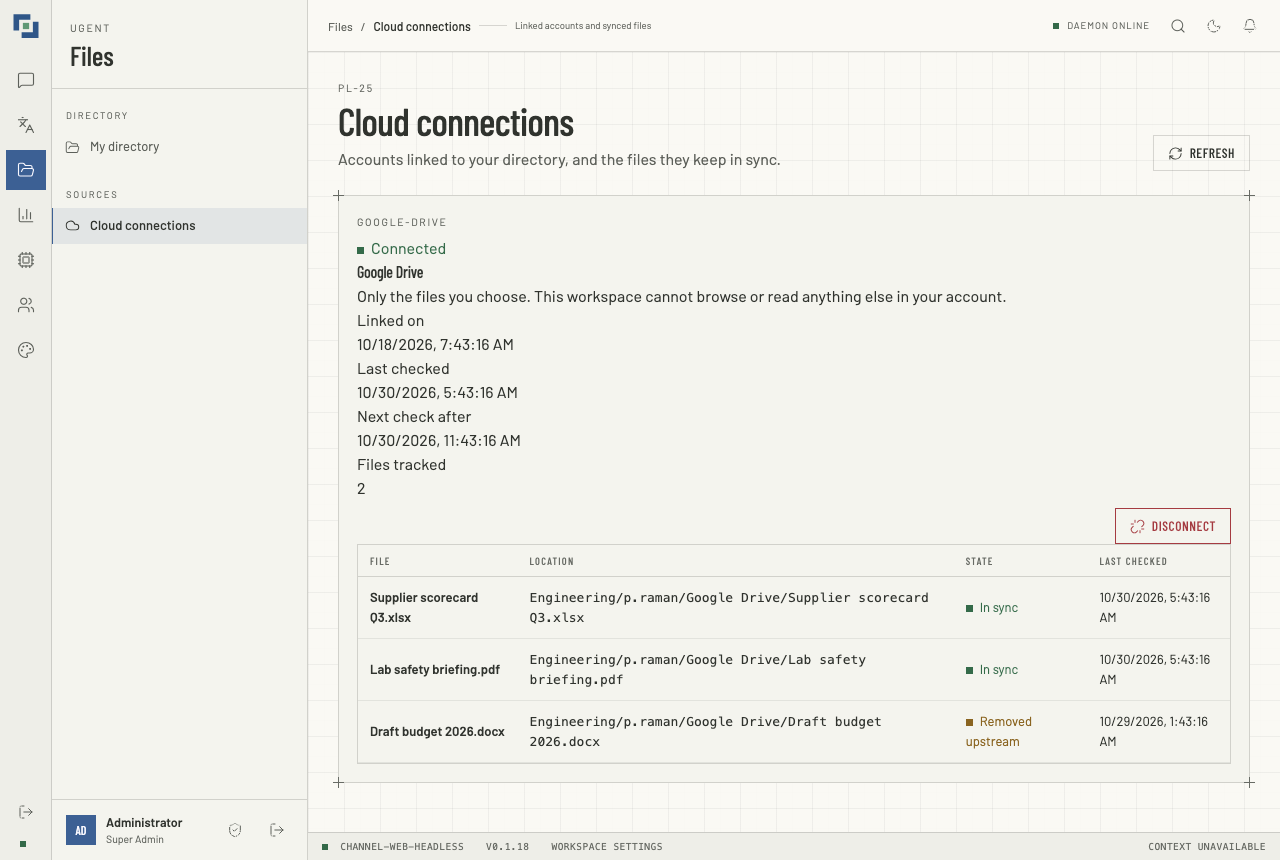
A connection reaches only the files you choose: This workspace cannot browse or read anything else in your account. Its card says whether it is Connected, Not connected or Needs re-authorisation, when it was Linked on, when the sync Last checked the files it keeps, the earliest it will look again, Next check after, and how many Files tracked its table lists, not counting files removed upstream. When Google asks the sync to slow down, the next check moves later and the last one stays as it was. Viewing needs files:read; connecting, importing and disconnecting need files:manage.
Link an account
- Click Connect on the Google Drive card, and allow access in Google's consent window. Leave the box for the files you choose ticked, or the server refuses the connection. Closing the window cancels, and nothing is said; a window your browser does not open asks you to allow pop-ups for the site.
- The page says Google Drive is connected. Nothing is imported yet.
A refusal naming the consent screen's "Testing" status is a setup fault: whoever set up Google Drive must make its consent screen internal, or publish it.
Bring files in
- In Files, click Import from Google Drive. An account not linked yet is asked for consent first.
- Choose files in Google's picker. Folders open, but cannot be chosen, and the picker lets you choose at most 50, the most one import takes.
- The page says how many it imported, and why any single file could not be. When the whole import fails, Files says why, in the server's or Google's words.
Wherever Files is open, the copies go to a Google Drive folder in your own folder, the one File Confinement gives you, never a shared one. With confinement off, no row, or a department supervisor's row, there is none, and the import finds no permitted destination.
While the workspace is locked, or its confinement file is refused and no good table was read from it, no folder of yours is known, so nothing is imported and nothing is downloaded. The reason the page gives is 'Report.pdf' was not imported: the workspace is locked until its confinement table can be read, or 'Report.pdf' was not imported: the workspace's confinement table is refused, so your folder is not known until it is fixed. A refused file that names no administrator the web server can trust locks the workspace, and gets the first. An administrator whom a refused file names with a folder of their own is not held by the refusal: their imports go into that folder as before.
Google documents, spreadsheets, presentations and drawings arrive as .docx, .xlsx, .pptx and .pdf; a PDF or Office file has its text extracted, as an upload does. A name already taken gets a number, Report (2).pdf, and a file over 50 MB, or of a type Files does not accept for upload, is not imported.
What syncing does
About every six hours, unless the deployment sets another interval, the server checks each file you imported. One changed in Google Drive is downloaded again and its text extracted again, with the exceptions below, and one unchanged is marked as checked. One deleted, trashed or no longer shared with you loses its copy and extracted text, so search stops finding it, and reads Removed upstream. Syncing never brings in a file you did not pick.
While the workspace is locked, or its confinement file is refused and no good table was read from it, a file changed in Google Drive is left alone. Nothing is downloaded, and its row stays as it was, not marked Not imported. It is taken up at the first sync after the table can be read again, which is the connection's next due check, so up to the sync interval later. A file deleted in Google Drive still loses its copy meanwhile, and an administrator whom a refused file names with a folder of their own syncs as before.
A changed file whose copy sits in a folder you may no longer reach, one the confinement table no longer gives you, is not downloaded either: the new version would go into your folder and leave the old copy behind, tracked by nothing and still searchable. The row keeps its path and reads Error with The copy at 'Finance/Report.pdf' is in a folder that is no longer yours, so it was not removed. Ask an administrator to remove it. An administrator clears it by deleting the copy in Files, which stops syncing it, or by moving it back into your folder, which syncs it again. A copy recorded outside the workspace is kept the same way, with its own sentence, and a file you pick again meets the same sentence. A copy you can still reach, or one gone from disk, syncs as before.
While your account is disabled, your connection is paused: nothing is checked or deleted, and it goes on at the first sync after the account is enabled again.
A copy you rename or move in Files stays tracked, but its next change in Google Drive puts it back in Google Drive under its Drive name. Deleting a copy, or a folder of copies, in Files stops syncing it: it leaves the table, and a later change in Google Drive does not bring it back. Picking the file again syncs it again.
The table gives each File, its Location and its State: In sync, Removed upstream, Not imported (refused, with the reason, and not tried again until you pick the file again) or Error (with the reason, and tried again at the next sync while the connection is Connected). Its Last checked is when the sync last looked at the file, an unchanged one included; a file Removed upstream or Not imported is not looked at again, so its time stays.
A lock, or a refused table, refuses no file: one changed meanwhile keeps the state it had, apart from an administrator's whom the refused file gives a folder, which syncs as before. A file of a type the workspace does not allow is still refused for them, by its type. A file whose copy the server will not remove where its row says it is reads Error too, with the sentence given under Unlink an account, a long path shortened as there, and is tried again at each sync: one removed in Google Drive, or one changed in it whose copy sits where its owner no longer reaches.
When Google stops accepting the connection, the card says Google Drive no longer accepts this connection, so syncing has stopped. Re-authorise to resume it. Click Re-authorise and consent again. After a Disconnect that failed part-way the card says the same, although Google refused nothing, and Re-authorise does not clear a kept copy; see Unlink an account.
Unlink an account
- Click Disconnect. It is off, with An import is still running beside it, while an import you began on Files in this browser tab is still going. Disconnect Google Drive? gives the number of files its table tracks, leaving out those removed upstream, whose copies are gone already.
- Click Disconnect and remove copies, or Keep it connected to back out. The page says Google Drive was disconnected and its imported files removed.
The server asks Google to revoke the workspace's access, forgets the connection, and deletes the copies it imported, with their extracted text, which takes them out of search. It deletes them while the workspace is locked, too. Nothing in Google Drive is changed or deleted; only the workspace's access is withdrawn.
It can stop part-way, and then the connection stays listed. Google has been asked to revoke the access by then, so the card reads Needs re-authorisation, as above, and the sync leaves the connection alone. Two kinds of failure stop it:
- A failure that may pass, such as the disk's or the database's. The page says Some copies could not be removed. The connection is still listed; try Disconnect again. Click Disconnect again: it removes what is left, and the connection.
- A copy the server will not remove where its row says it is. It removes the rest, and the page says Some copies were kept, so the connection is still listed., then a sentence for each copy kept, then Then Disconnect again. Disconnecting again alone does not remove such a copy: do what its sentence says first. The table lists the same sentence under the copy, which reads Error. The answer gives the whole path; the table keeps at most 500 characters, so it shortens a path past about 380 in the middle with
..., and what clears the copy is never cut. The sync leaves a connection that needs re-authorisation alone, so only the next Disconnect tries the copy again. The card offers Re-authorise, which does not clear it: the next sync of an unchanged copy ends the table's sentence, the copy stays where it is, and the next Disconnect names it again. The sentence is one of three:- The copy at 'Shared/Report.pdf' is outside your own folder, so it was not removed. Delete it, or move it back to your folder, in Files. The copy is in a folder you may reach, such as a shared one you moved it into.
- The copy at 'Finance/Report.pdf' is in a folder that is no longer yours, so it was not removed. Ask an administrator to remove it. The confinement table no longer gives you that folder.
- The copy at '../Outside.pdf' is recorded outside the workspace, so it was not removed. Ask an administrator to correct its record. Its row records a path beyond the workspace's folders. Removing a file clears nothing here: the record is what is corrected.
A file being imported for the first time while a disconnect runs, in another tab or on another device, can still land after the last look and stay in your folder, tracked by nothing. The disconnect looks again for what landed, up to three times, which narrows that chance and does not close it.