The Web Workspace
A browser front end for the agent: ask a question, watch it reason, keep the conversation, and work with the documents it can read. It is a separate application from the tenant console — the console administers the context engine, this is where people actually work.
It is branded per deployment, so yours may carry a different name and mark than the screenshots here.
Signing in
Sign in with the identifier and access key your administrator issued, or through your organisation's identity provider when SSO is configured. Federated and password logins resolve to the same person, so memory and access rules carry over either way. A single sign-on that cannot begin or finish brings you back to this screen with the reason under the access key; People and Permissions lists them. With no other page asked for, you land on the chat, or, if your role does not open it, on the first section of the rail that it does. The identifier and the email need not match in case. An administrator resets a forgotten key, and you change your own with Change access key on your profile card; see People and Permissions.
The session is held in an HTTP-only cookie, not in page storage.
Asking something
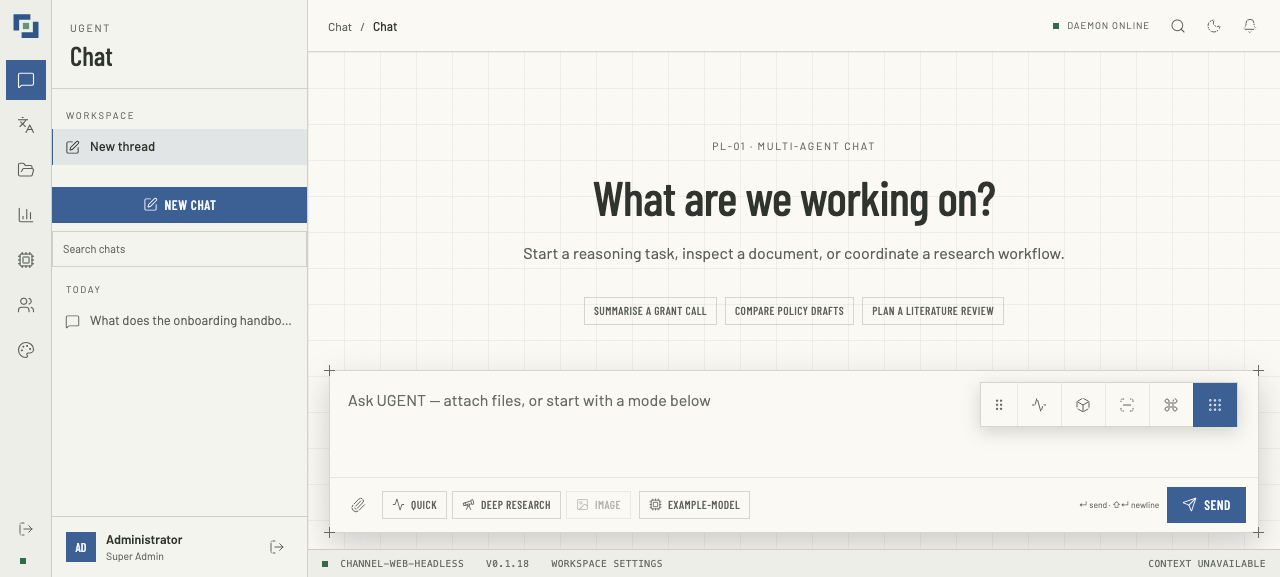
The composer is the whole interface. Press Enter to send and Shift+Enter for a newline. While an answer is still coming, Enter queues your message instead of sending it — see While a turn runs.
Below it are the controls that change how the turn runs:
| Control | What it does |
|---|---|
| Quick | One pass, answer directly. |
| Deep research | A longer plan-and-gather run for questions worth the wait. |
| Image | Generate an image instead of prose. Unavailable when no image model is configured for the workspace. |
| Model | Pick from the models your administrator allowed you. Your choice is remembered in this browser. |
| Attach | Send files with the question, for a role with documents:upload. Images are offered only when the selected model can read them. |
No mode is selected to begin with: the agent decides how to handle a message unless you pick one, and clicking a selected mode again clears it. The three modes are built into the workspace; what each one actually does is routing configuration, which a deployment decides for itself.
Each message runs on the model shown when you send it, and that choice belongs to the message alone. Picking a model here never changes the translator's, nor the reverse, and two of your turns running at once each keep their own.
Where the deployment can hear and speak, the composer also offers voice messages, dictation and calls — see Speaking instead of typing.
Attachments are read, not just uploaded
A document you attach is extracted and made available to the turn. Office formats and PDFs are converted to text first; a scanned PDF with no text layer will not contribute anything, however well it renders.
Attaching a file to a new chat starts its conversation first, so the file is yours from the moment it is uploaded. An upload that is refused says why, and a message whose file failed or is still uploading is held rather than sent without it. A message refused before it reached the agent comes back to the composer, words and files together.
While a turn runs
While the agent is working, the composer offers two choices in place of Send:
| Control | What it does |
|---|---|
| Steer | Sends your text into the running turn. It appears in the conversation, marked Steering, only once the agent has taken it. Steering carries text only, so it is unavailable while a file is attached. |
| Queue | Holds the message on this page and sends it once the turn has answered. Enter does the same. |
Stop, in the status strip above the conversation, asks the agent to stop the turn.
A queued message waits in a strip above the composer and goes only when the agent's own record says the turn completed. If the turn is stopped, goes quiet, is refused or asks you a question, the message is held instead — Not sent automatically — with Send now, Edit (not for a voice message) and a button to remove it. While the turn still runs, Steer now steers it with the queued message instead. One message can wait at a time, and the page holds it, not the agent: a reload drops it.
A steer that is not taken stays in the composer with the reason: the turn ended before it arrived, is still starting, already has too many messages waiting, or the text is too long. When the agent gave no answer at all, steer again — a steer is never applied twice, and the same text is not sent as a new message unless you change it.
A steer that is taken but cannot be saved is on screen and with the agent, but is not kept for a reload. The page says The steering message was sent, but could not be saved. and the server's sentence, when the message, or the conversation, is past what one holds; see How much a conversation holds.
Stop says what happened. The strip reads Stopping… until the agent answers, then Stopped, which a reload keeps, or Stop not confirmed when the request did not reach the agent and the turn may still be running. Stopping a turn also stops the work it delegated (Tasks and Checks) and closes a question it was waiting on. A steer the turn had not used yet is taken up with your next message.
While a turn runs, the strip says what the agent is doing. Afterwards it claims completion only for an answer the agent finished:
| Status | What it means |
|---|---|
| Turn complete | The agent finished its answer. |
| Waiting for your answer | The agent asked you a question; see below. |
| Paused for a question | The turn ended on a question; the answer follows your reply. |
| Stopped | The agent confirmed the stop. |
| Stop not confirmed | The stop request did not reach the agent. |
| Not confirmed | The connection dropped before the agent confirmed it received your message; see Send again. |
| Answer incomplete | The agent did not report finishing the answer shown. |
| No answer reported | The agent reported no answer for this turn. |
A long silence is not taken for an ending. After five minutes with nothing reported the page says so, and an answer that arrives while it stays open still appears in place.
Answering the agent's questions
When the agent needs something from you mid-turn — a choice, a value, a yes or no — the turn pauses and an INPUT REQUIRED card opens in the thread, with how long the agent will wait for a reply. Answer on the card. The composer is held meanwhile, because a message sent would otherwise be taken as the answer; Abort turn dismisses the question and ends the turn.
Your answer names the question it answers, and it is applied once. A second click, a stale card in another tab, or an answer sent after the question expired or its turn was stopped is told why it was not taken — "This question was already answered.", "This question has expired.", "This question was cancelled: its turn stopped." — and never runs as a new message or answers a different question. A secret answer goes to the agent alone: the transcript keeps a mask, never the value.
Once the reply window has closed, the card takes no more answers and says so; abort the turn, or send a new message.
Reading the reasoning
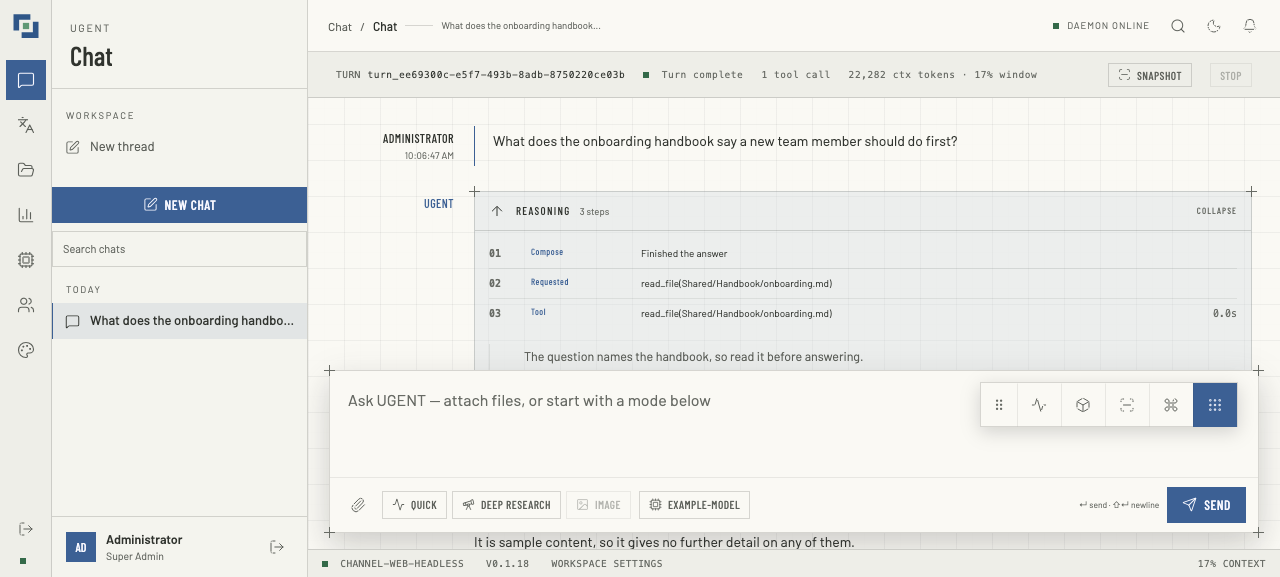
The strip above the conversation follows the current turn: its id, its status (see While a turn runs), how many tools it called and how much of the context window it used, with Snapshot to open the conversation's record as the agent holds it (not in the embedded widget). Reasoning expands into the steps the agent took — each tool call, each retrieval, in order. It stays open while the agent works and folds away once the answer is in.
This is the part worth learning. It is how you tell an answer drawn from your documents from one drawn from the model's general knowledge: in the run above, the steps show the agent reading the onboarding handbook (read_file) before it answered, so the answer rests on that file. A file read this way is named in the steps rather than cited; citations come from workspace retrieval.
When an answer is grounded, the sources appear beneath it, each numbered for the claims that rest on it: see Citations under an answer.
Files the turn produced are listed under its answer, to open or download; an image shows a preview, and a sound plays in place. Sources and files stay with the answer that produced them, through a reload, and Artifacts in the floating dock lists every file the conversation has recorded. A file link opens only for the conversation's owner, and keeps working after the agent restarts for as long as the deployment keeps the file.
Open on a markdown file shows it over the chat, formatted as an answer is, with Download and Open raw beside it; Esc or Close puts it away. A link in an answer to a file the workspace holds opens the same way, and shows a plain text file as it is. A PDF, a picture, an Office file, an archive, a sound or a film opens in a new tab instead, and Ctrl- or ⌘-click opens any link in a new tab. Markdown longer than 50,000 characters is shown as plain text — Shown as plain text: this file is too long to format. — and a file over 2,000,000 characters is not previewed at all.
When work in the conversation — a goal, or a task the agent delegated — is checked, a line under the strip says where its committed verification stands: Verified snapshot with the checks that passed, or Checks pending, Checks failed, Verification blocked, Checks out of date, Checks cancelled, or Evidence unavailable once a record behind it has expired (What the labels mean). Where the checks judged an output rather than a workspace, the line names what they checked instead: Citations pinned for a research answer — where each claim comes from, not that the source says it — and Preservation checked for a translation, which says nothing of how well it reads. Those two appear only where an application built on UGENT binds such checks itself; no setting turns them on. "Turn complete" says only that the answer finished, and nothing appears where no checks are configured.
Citations under an answer
An answer grounded in your workspace marks each claim where it uses a source: a bracketed number after the sentence, [1], which jumps to the source with the same number under the answer. The sources are listed in the order the answer first cites them, and the numbers appear once the answer is finished. An answer keeps, numbers and shows at most its first 64 sources, and shows the same after a reload.
Each source says what it is:
- A file: its name and the lines quoted, plan.md - lines 45-67 or plan.md - line 4, or the page, report.pdf - page 7. A citation into a PDF opens the original at that page rather than the converted text; see Getting Content In for how documents become searchable. A file whose path has a space in it is cited the same way, under its real name.
- An exact document version: Cited version, which says when it is no longer the version search shows, and keeps showing the text it cited; see Document Versions.
- A database table: orders table, crm. A database's notes document reads crm database notes.
- A fact workspace memory recalled: Workspace memory. It has no file to open.
- Finding source… while the page looks the source up. After 15 seconds without an answer it reads Source unavailable.
- Source unavailable: the source does not resolve for you, whatever the reason, including one you may not open. The page never shows its raw id.
In place of a number, the text can show one of two warnings. Neither changes the saved answer, only what the page shows.
- [⚠ unreadable citation]: the agent wrote a citation in a form the page cannot read, most often by putting a path's spaces back, so its source cannot be shown.
- [⚠ unverified citation]: the agent cited a source it was not given, so there is nothing to show. It appears only in an answer that also has sources, fewer than 64 of them; elsewhere such a mark shows nothing.
Below, the first claim cites a file whose path has a space, by the marker the agent was given. The second cites the same file with the space put back, and then a file the agent was never given:
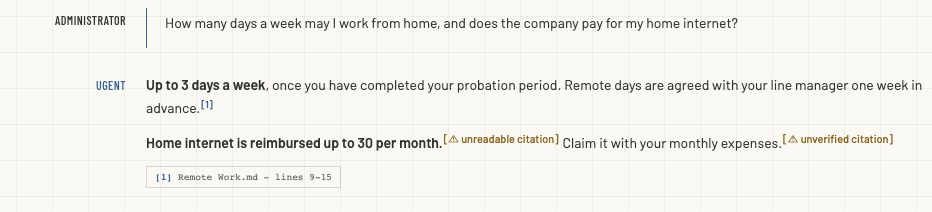
The agent cites by the marker each source came with: a passage retrieval gave the turn before it started, a hit from a search the agent ran itself, a paragraph a document tool returned, or a fact workspace memory recalled. It does so unprompted where the workspace's AGENTS.md tells it to; see Document Sync. A file the agent opened by its path is cited with a footnote instead: a plain number that jumps to a note at the end of the answer, with no source in the list.
Charts, diagrams, maths and code
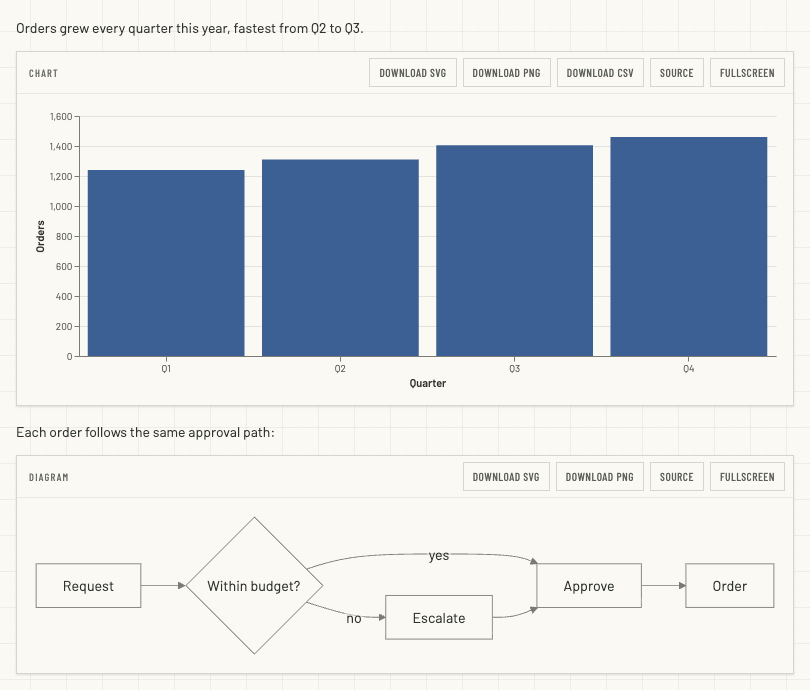
An answer can carry more than prose. When it finishes, the workspace draws these in place:
| In the answer | Drawn as |
|---|---|
A fenced block marked mermaid | A diagram: a flowchart, a sequence, class or state diagram, a Gantt chart, a mind map, or another kind Mermaid draws. |
A fenced block marked chart or vega-lite | A chart, from a Vega-Lite specification with its rows in data.values. |
A formula between $$ and $$, or in a block marked math | Typeset maths. A single $ is left alone, so prices read as prices. |
| A fenced block marked with a language | Code coloured for that language, with Copy. |
Each drawing sits on a card with Source (the text it was drawn from), Fullscreen where the browser allows it (not on an iPhone), Download SVG and Download PNG, and Download CSV for a chart's rows. Code is coloured in Bash, CSS, diff, Go, HTML, Java, JavaScript, JSON, JSX, Markdown, Python, Rust, SQL, TOML, TSX, TypeScript and YAML, under their usual short names too (js, ts, py, rs, yml, md, sh, shell, zsh); any other language is shown plain.
What the workspace will not draw, it says:
- Couldn't draw this chart. or Couldn't draw this diagram., with the reason. A chart takes its rows inline — at most 5,000 of them, in a specification of at most 200,000 characters — and cannot load data from a URL or use regular expressions. A diagram is at most 50,000 characters and 500 statements.
- The drawing code didn't load. Reload the page to draw it., with Try again: the network, not the drawing.
- This chart didn't finish drawing last time., with Draw anyway: a drawing the page went down with is not drawn again until you ask.
Long code stays readable but plain: a block over 25,000 characters, a line of 250 or more, and anything past 50,000 characters of code in one answer are not coloured. A formula that defines its own macros, is over 10,000 characters or nests more than eight levels is shown as its source, as is maths past the first 20,000 characters or 1,000 formulas of an answer.
Tell the agent it can draw
The agent writes these blocks when it knows the page draws them. Until your deployment tells it so itself, say it in the workspace's AGENTS.md, for example:
## Charts and diagrams

The web workspace draws these in an answer, so use them where a picture
says more than prose:

- a fenced `mermaid` block for a diagram;
- a fenced `chart` block for a chart: a Vega-Lite JSON object with its rows
  inline in `data.values`, at most 5,000 rows, never data from a URL, and
  `"width": "container"` so it fills the answer's width;
- `$$ … $$` for a formula on its own line (a single `$` is not maths).
Records under an answer
Where a workspace has record cards, an answer that rests on rows of a spreadsheet — an audit register, a list of findings — shows each row it cites as a card under it, read from the file just now: Current record values. The footnote mark in the answer jumps to its card. The first few cards are open; Expand or Expand all opens the rest, and an action on a card may open a link or the row's other fields. A record you may not read is counted — 1 cited record can't be shown. — and not described.
Speaking instead of typing
Where the deployment can hear and speak, the composer offers up to three more controls, and finished answers one more:
| Control | What it does |
|---|---|
| Microphone (Record a voice message) | Records a voice message and sends it as an ordinary turn. |
| Dictate into the message | Records, and puts the words into your draft. Nothing is sent. |
| Phone (Start a call) | A live, spoken conversation with the agent's voice. |
| Read aloud | Under a finished answer: reads it to you. |
Each appears only when the deployment reports that it works, and the microphone only for a model that can take a voice message. A missing button means the deployment cannot do that here, not that something is broken. The first three need chat:write, and Read aloud needs documents:read, since a spoken answer is kept as a file of the conversation. In an embedded widget they are offered as the published widget allows, none until the panel has read it, and the page around it can turn them off but not on; see Branding and the Embedded Widget. Operators set all of this up in Voice.
Voice messages
A press of the microphone records in the browser, showing the elapsed time and a level meter, and stops by itself at the deployment's limit (five minutes by default). Cancel throws the recording away. Send uploads it and sends it as a turn of its own, so its answer streams, is stored and survives a reload like a typed one. A voice message refused before it reaches the agent is not kept to try again: the page says The voice message was not sent, and its recording is not kept. Record it again. When the server refuses the save for size, the message's or the conversation's, the notice leaves out Record it again., since the next recording would meet the same refusal; see How much a conversation holds.
In the thread the message shows as its recording: a player, its length and what was heard. It reads Transcribing… until the agent has heard it, then the words — or Transcript unavailable when nothing was heard, or when the message was answered without being heard (too long, or voice turned off), in which case the answer says why. If the page closed before the words came, they appear after a reload. The words stay with the message for good, unless the server refuses to save them for size, which the page says (see How much a conversation holds); the recording plays back, for you alone, for as long as the deployment keeps it (30 days by default), and reads Recording expired after that.
While an answer is streaming, Send becomes Queue: the voice message waits behind the answer as typed text does. Steer now on a queued voice message transcribes it and steers the running turn with its words.
Dictation
Dictation is offered whenever the deployment can transcribe, whatever the model. It records the same way; Insert puts the words into your message where the cursor was. Nothing is sent, and nothing of the recording is kept.
Read aloud
Every finished answer gets Read aloud. It reads the answer a few sentences at a time — the first part quickly, the next fetched while one plays — and shows how far it has got; Stop ends it, and reading another answer stops the one playing. A code block is said as "Code omitted.", a link is read as its text, and URLs, citation marks (even one the page cannot read) and formatting are not read out. An answer still streaming, stopped or cut short has no button.
Where the deployment asks for it, the answer to a voice message you sent from this page is read aloud by itself when it arrives, and its Stop stops it. Nothing is read aloud again after a reload. On an iPhone (iOS 17 and later) a reading asks iOS to treat it as media playback, so the ringer switch should not silence it (not yet confirmed on a device), and one that iOS interrupts — a phone call, say — ends and says so.
Live calls
Start a call opens a spoken conversation with the agent's voice: you talk, it answers aloud, and speaking over it stops it. The panel that takes the button's place says what the call is doing — Listening, Thinking…, Speaking, Asking the agent… — and how long it has run against its limit (15 minutes by default), with captions of both sides.
| Control | What it does |
|---|---|
| Microphone (mute) | Holds your microphone back; the panel shows Muted. |
| Push to talk | Sends the microphone only while Hold to talk is held — by pointer, the space bar or Enter — for a room too noisy to tell when you have finished. |
| Stop reply | Stops the answer being spoken. |
| Type to the call, Say | Something typed is answered as if you had said it. |
| End call | Hangs up. |
The voice answers what it can itself and hands anything about your own work, files or data to the agent. That request runs as an ordinary turn of the conversation — shown in the thread, its answer streaming and staying there — and the voice gives a short spoken account once the answer is in. One request at a time: while another answer is coming, or a question waits for you, the voice is told the agent is busy.
Afterwards the conversation keeps one line for the call — its length, how it ended, how many requests it made — which opens on what was said. A call in which nothing was said leaves nothing. If the server refuses to save the line for size, the page says so and the line is not kept for a reload (see How much a conversation holds).
- You have one call at a time; leaving the conversation, or the page, hangs up.
- A muted call with nothing playing and nothing asked of the agent ends after a minute of silence by default, and the panel warns you first.
- When a call ends any way but by your hanging up — its limit, silence, another call open elsewhere, a lost connection, your session ending or your permission to chat being taken away — the page says why.
- A call closes within a minute of its session ending, and the page says Sign in again to make a call. Changing your own access key ends it the same way in the session you changed it from, although you are still signed in: start the call again. A call closes within a minute of your permission to chat being taken away too, and the page says This call is not allowed: the conversation is not yours, or you may not write in it.
- While a call lasts, the microphone and dictation make way for it, and nothing is read aloud.
Keeping conversations
The sidebar lists your threads under Starred, Today, This week and Older, with Search chats above them. A title takes the whole row; hover it to see when it was last updated. Its actions wait behind the More actions button that shows on hover or focus: Star lifts it into Starred, Rename (or a double-click on the title) renames it, and Delete removes it. New chat starts a fresh one; threads are independent, with their own state and memory scope, so a new thread is a clean slate rather than a continuation.
A thread started by a voice message takes its title from the first words heard, unless you have renamed it meanwhile.
Reloads, reconnects and other tabs
The agent keeps the record of every turn, so a conversation does not depend on the page that started it:
- Reload, or come back later. A reloaded page — or one opened after every page was closed — picks up where the agent is: a turn still running goes on filling its answer, an answer that finished while no page was open is shown and kept, and a question still waiting reopens.
- Open it twice. With the conversation open in two tabs, or on two devices, a message sent from one appears in the other as it is sent — typed, a voice message with what was heard, or a request a call handed to the agent — and its answer follows as it runs. Stop, steering and queueing work from either.
- Lose the connection. The page resumes where it left off. If the server no longer holds what the page missed, the page takes up the conversation as it now stands rather than replaying old events as new.
- Send again. A message the agent never confirmed reads Not confirmed: the connection dropped before the agent confirmed it received this message, with Send again. It goes under the message's own ids, so if the first attempt did arrive it cannot run twice. After a reload it can send a text message again, or a voice message within a day of sending (the agent keeps the recording that long), and it runs on the model the chat shows now: the model a message was first sent on is not kept with it. It is never offered for an answer to a question, or while a question waits.
How much a conversation holds
One conversation holds at most 10,000 messages and 50,000,000 bytes of text: answers, their reasoning, and the files and sources kept with an answer, together. That is about 50 million characters of English, and a third of that of Chinese. One message or answer holds at most 2,000,000 characters, and its reasoning as many.
A save past a limit is refused, and the same save would be refused again, so the page does not try it again. It gives the server's own sentence for the limit it met:
- This conversation is too long to add to. Start a new one. The conversation is full. What it holds stays and can still be read, but nothing more is added to it. New chat starts a conversation with room.
- A message holds at most 2,000,000 characters, and its reasoning as many. A message or an answer, or its reasoning, was longer than that.
What the page says around the sentence depends on what was refused:
- A message you sent is refused before it reaches the agent, and a typed one comes back to the composer. The page says Your message could not be saved, so it was not sent. and the sentence. A voice message gets the same notice, with The voice message was not sent, and its recording is not kept. beside it. That one does not add Record it again., since the next recording would meet the same refusal.
- A reply to the agent's question is saved before it is sent, so it meets the same refusal. The page says what it says for a message, and the question comes back on screen while the agent still waits on it.
- An answer stays on the page. The page says This answer was not saved., the sentence, and It is shown here: copy anything you need from it.
- A steering message the agent took is on screen and with the agent, but is not kept. The page says The steering message was sent, but could not be saved. and the sentence.
- A voice message's transcript is saved into the message once the agent has heard it. When that save is refused, the message was sent and is answered as usual, and the words are on screen but not kept with it. The page says The transcript of the voice message could not be saved. and the sentence, while you are in that conversation.
- A call's record, the line the conversation keeps for a call, is saved when the call ends. When that save is refused, the line is on screen but not kept for a reload. The page says The record of the call could not be saved. and the sentence, while you are in that conversation.
Files
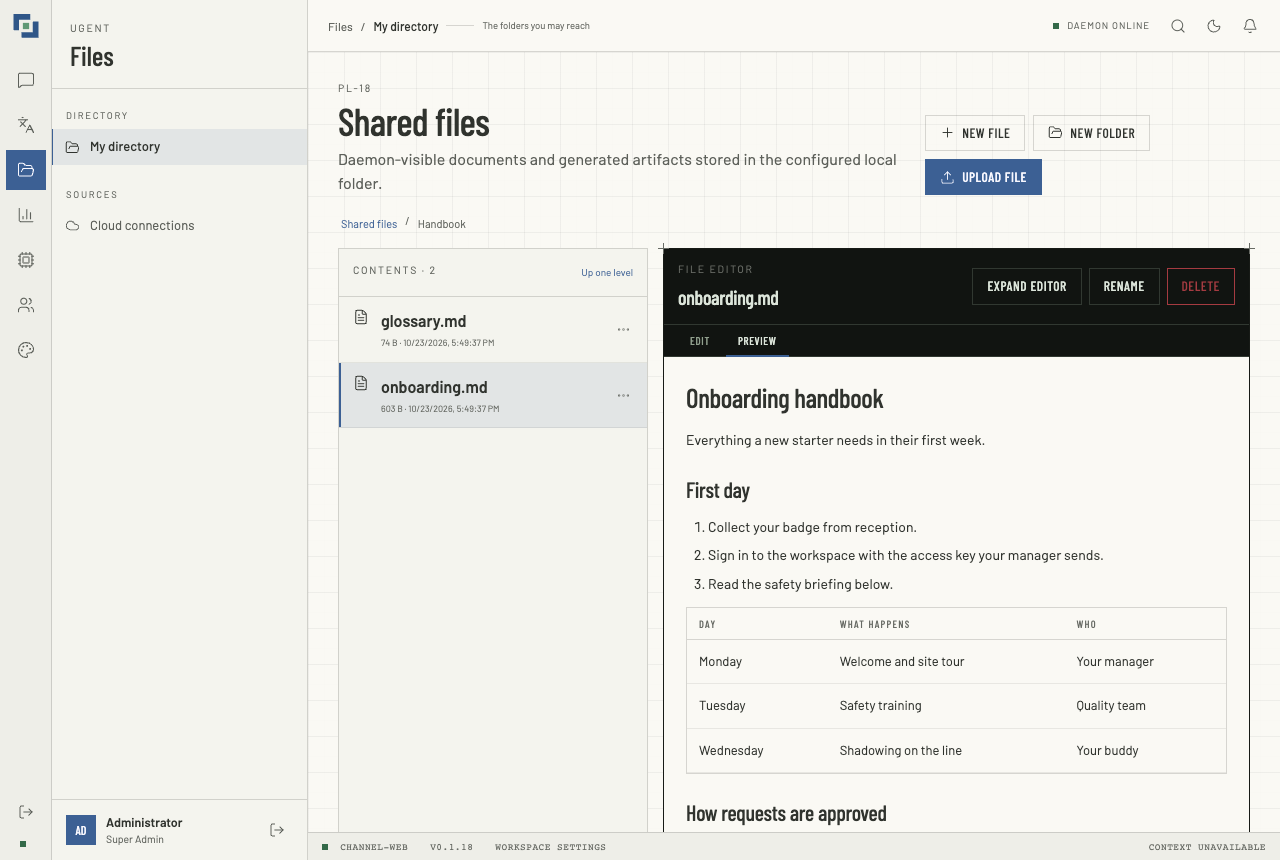
Files shows the folders you may reach — not the whole workspace, only what your account's access rules permit. You can create, upload, move, rename and delete within them, and open a text document in place. A file keeps the name you upload it with, in any script; a name too long for the disk is shortened, never its extension.
Moving files and folders
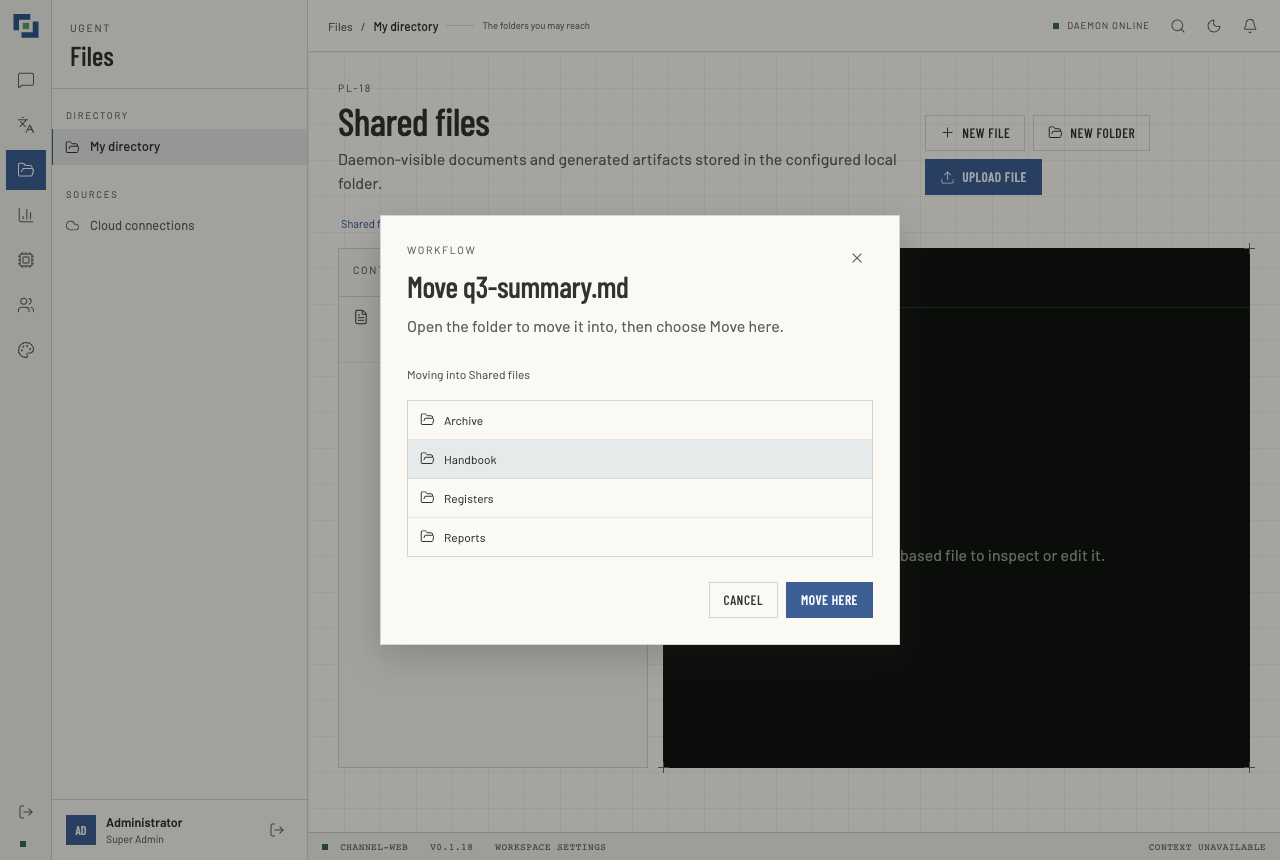
Every row, folders included, has a More actions button (⋯) with Move…, Rename… and Delete.
- Move… opens a folder picker that starts where the item is. Open the folder you want — Up one level goes back — and choose Move here. The folder it is already in cannot be chosen, nor, for a folder, itself or a folder inside it.
- Or drag it. Drop a row onto a folder in the list, onto a folder in the path above the list (Shared files for the top), or onto Up one level. A folder that would take it is outlined while you drag. Where dragging is awkward, on a phone for instance, Move… does the same.
- A file you have open stays open where it went, unsaved changes and all, and goes on following the folder it is in: renamed or moved again, it saves to where it now is. Deleting that folder closes it.
Moving needs files:manage, and both folders must be ones you may reach. A folder moves with everything in it. A document already made searchable is read again where it now is, so its citations follow it; its row says text extraction queued, then extracting text…, until that is done.
Where the server runs in document catalog mode, a folder's documents are moved rather than read again. They stay the same documents at their new paths, their versions and kept extractions moving with them, so a moved or renamed folder shows no extraction. A document moved on its own is still read again under its new name.
Folders named doca_extraction hold the text extracted from the documents beside them, and the workspace tidies them up by itself. In catalog mode they also hold each document's kept extractions and its catalog records, in results/ and sources/, under the same rules. So they cannot be moved or renamed, nothing can be moved into or out of one, no new folder may take the name, and New file, New folder and Upload file are off while one is open; their menu offers Delete alone. The extracted text itself can still be opened and corrected. In catalog mode, leave a kept extraction under results/ as it is: it is the record of what was extracted, a correction there changes nothing in search, and once edited it gets that document's later changes refused, such as a rename or a move. Correct the document itself and upload it again, which makes a new version. Deleting a doca_extraction folder in catalog mode takes its documents out of search at the next complete scan.
To add a file, use Upload file: one dropped from your computer onto the page is not uploaded, and does not replace the page either.
Editing, previewing and sizing
A markdown file opens with two tabs. Edit is the text; Preview shows it as the chat would — headings, tables, code, charts, diagrams and formulas — your unsaved changes included. A file over 50,000 characters is previewed as plain text. Other text files open in the editor alone.
- Make the editor taller or shorter by dragging the bar under it. With the bar focused, the arrow keys move it, Page Up and Page Down in bigger steps, Home and End to the smallest and the largest. A double-click puts it back. Each browser remembers the height you chose.
- Expand editor grows it to fill the screen — clear of the floating dock — and a second press puts it back.
With changes not yet saved, opening another file or folder asks first, and so does leaving the screen — a link elsewhere in the workspace, Back or Sign out — as the browser does before a reload or a closed tab. Answer no to stay with your changes.
Large files
A text file over 1 MB is too large to edit in the browser, so it opens read-only: the first 2 MB of it, then Show more for each next part. The line under it says how much is showing — Showing 2.0 MB of 2.6 MB. — until it reaches Showing all. Editing stays limited to files of 1 MB or less.
Uploading a PDF or an Office file starts a text extraction in the background; the entry shows extracting text… while it runs. That derived text is what search and citations use.
Cloud connections links your Google Drive, where the deployment has set it up, so that files you pick there are copied into your folder and kept up to date; see Cloud connections.
The rest of the workspace
What you see depends on the permissions your role carries, so some of these may be absent:
- Translation — translate pasted text, or a ready document from the source library, in any of twelve languages, with your glossary entries and up to four references. The server checks every choice before it runs a job, and the job keeps running if you close the page. A run filed in a translation workspace is read by everyone who reaches it. See Document Translation.
- Insights — runtime telemetry, for administrators, and translation analytics, counted over the whole deployment. Model costs there are estimates from public list prices, not your provider's invoice. See Runtime Tools and Insights.
- Runtime — the models available to you, the agent's health, a console for its model commands, and the
routing.tomlandAGENTS.mdan administrator may edit in place (see Runtime Tools and Insights), and File confinement: which folders each person may reach. UnderAGENTS.md, the Record types panel checks the workspace's record types and previews a record's card before you save; see Record Cards. - People — users and their access keys, departments and groups, roles, and which models each department and group may use. See People and Permissions.
- Theme studio — brand colours, logos and the embeddable chat widget, with a live preview, and the other sites that may show the widget. A widget can be published without attachments or voice; that shapes what the widget offers, and does not stop the same person using them in the full app — roles do that. See Branding and the Embedded Widget.
When something looks wrong
- The daemon indicator in the top bar says what the agent backend's health check last answered: DAEMON ONLINE, DAEMON DEGRADED (it answered and reported a problem) or DAEMON UNREACHABLE (no answer), with CHECKING DAEMON before the first answer. DAEMON STATUS UNAVAILABLE means your role may not read health (
workspace:view), not that the agent is down. The status bar along the bottom works the same way: the channel and its version, and the open conversation's last context reading, or unavailable where nothing has said. - An answer with no sources is not a failure — expand the reasoning and check whether retrieval ran at all. If it did and found nothing, the document may not be indexed, or may be outside what you may read.
- [⚠ unreadable citation] or [⚠ unverified citation] in an answer — the agent wrote a citation the page cannot follow. The claim is still there, but has no source to show; see Citations under an answer.
- Source unavailable — the source does not resolve for you: it may have moved, or be outside what you may read.
- Files says "The workspace is locked: …" — the workspace's confinement table cannot be read as it is, so nobody reaches its folders until it can. Whoever runs the workspace fixes it; see File Confinement.
- A read-only composer means your role lacks
chat:write. - No Attach button means your role lacks
documents:upload, or, in an embedded widget, the widget's options leave attachments out or have not been read: the composer then says Reading this chat's options… or This chat's options could not be read. - No microphone, dictation, call or Read aloud button means the deployment does not report that voice works here — for the microphone, with the selected model — or your role lacks the permission it needs (see Speaking instead of typing).
- "No answer has been reported for five minutes" — the agent may still be working. An answer that arrives while the page stays open appears in place; reload later to pick it up from the server otherwise.
- "Couldn't draw this chart." or "…diagram." — the reason follows it, and Source shows what the agent wrote. A chart that needs data from a URL, more than 5,000 rows or a regular expression is refused by design; see Charts, diagrams, maths and code.
- "The drawing code didn't load." — the page could not fetch part of itself. Try again, or reload.
- Plain
record:footnotes, or "N cited records can't be shown." — the workspace's record types need attention, or the records are in files you may not read; see Record Cards. - A file opens read-only, a part at a time — it is over 1 MB, the most the browser edits; see Large files.
- "This conversation is too long to add to. Start a new one." — the conversation holds as much as one may; see How much a conversation holds.