People and Permissions
The People section of the web workspace is where an administrator adds the people who may sign in, puts them in departments and groups, and decides what each may do and which models each may use. This page is for whoever looks after those accounts. What a person may read is decided elsewhere: their folders by File Confinement, and what search returns by the context engine's access rules.
Document Author: Uni Zhu
Add a person
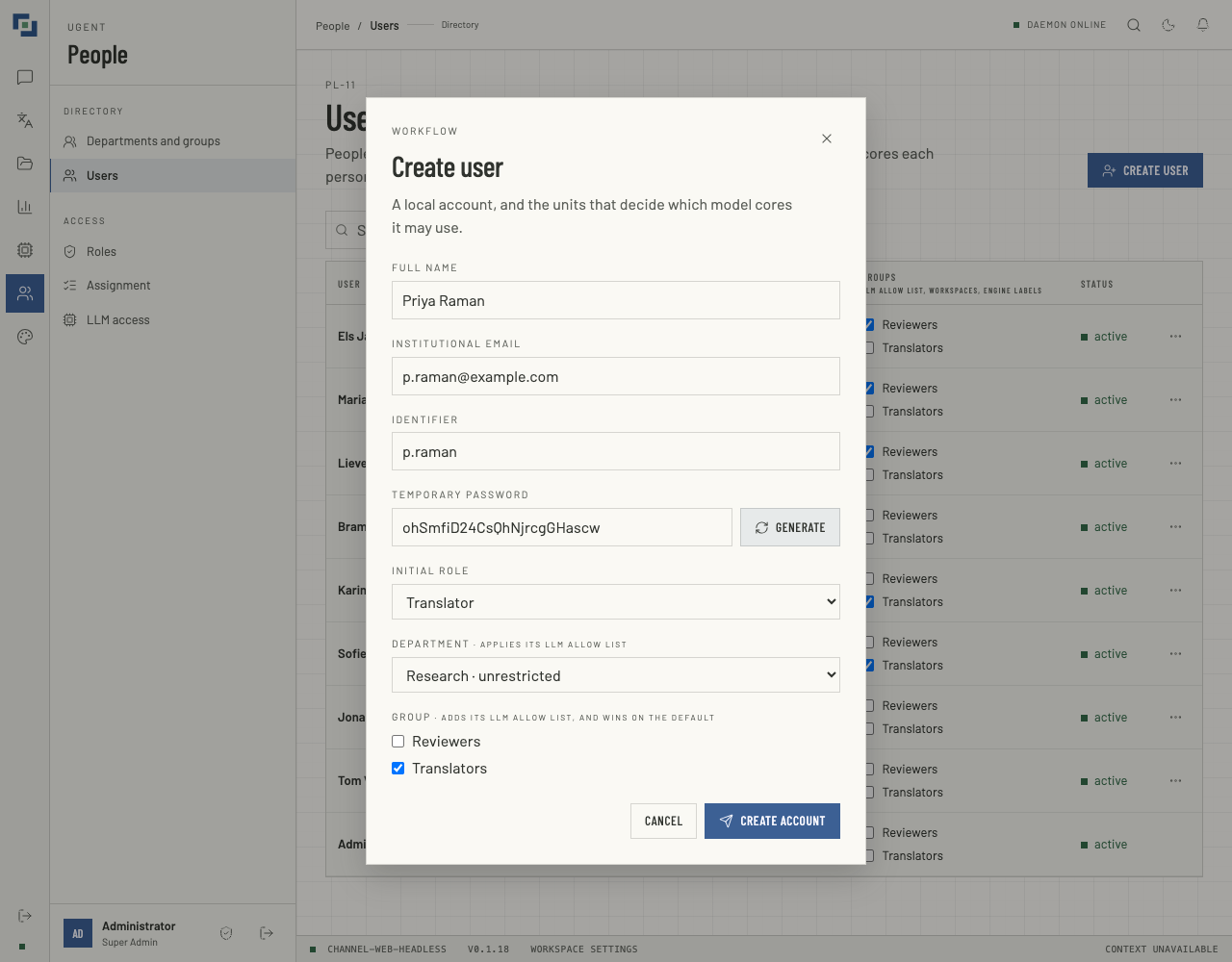
- Open People → Users and click Create user. The list needs
users:read; creating needsusers:manage. - Full name: as others should see it, such as
Priya Raman. - Institutional email: it signs them in, and single sign-on finds their account by it.
- Identifier: a short sign-in name such as
p.raman: 2 to 64 letters, digits, dots, hyphens or underscores. It can never be changed. - Temporary password: their access key, at least 12 characters and at most 72 bytes, which is fewer characters for a key with accented or non-Latin letters. The form checks both before it sends anything. Generate fills in 24 random characters with no look-alikes such as
0andO, and shows them so you can copy them. - Initial role: see Roles. With No role they can sign in and open nothing. The list is empty unless you also hold
roles:read. Only a Super Admin can give Super Admin, and a role that grants a permission you do not hold yourself is refused. - Department and Group: only ones that already exist, so create them first. Each department says how many models its allow list holds, or unrestricted.
- Click Create account. The page says Priya Raman created. A role, department or group deleted since you opened the form is refused, and nothing is created: That role no longer exists, That department no longer exists or One of those groups no longer exists.
An email or identifier already in use is refused, in any case, as in A user with this email address already exists: P.Raman cannot join beside p.raman. Nothing is sent to the person: give them their identifier and access key yourself.
How they sign in
They type their Email or identifier and Access key, then click Enter workspace. Neither has to match in case: a sign-in that names no account exactly finds the one account that matches in another case. A session lasts eight hours, and ends sooner when their key or email changes or they are disabled; see Sessions.
- The access key stays theirs. The form calls it temporary, but nothing asks them to change it. They change it themselves with Change access key, the shield beside Sign out on their profile card at the foot of the panel: their current key, then the new one twice (Generate fills in both). Every other session they have ends. The one they changed it from goes on, but what it has open closes within a minute: the page picks its live updates up again, and a call has to be started again; see Sessions.
- With SSO they can sign in through their identity provider. The first time, the workspace finds their account by email, if the provider vouches for the address, and keeps the link. SSO never creates an account, so use the email their provider holds. A single sign-on that cannot begin or finish brings the browser back to the sign-in screen with the reason under the access key; see When something looks wrong.
- Where they land. On the chat, if they may open it; otherwise on the first section of the rail they may open, as its button would open it. That holds whenever no other page is asked for: on signing in, single sign-on included; at the workspace's own address,
/; at an address that is no page; from Return to workspace on a refusal; and from the mark above the rail's buttons. Someone who may open no section lands on the chat, which says Permission required. - A forgotten key is reset by an administrator. Forgot access key? on the sign-in page says so, and sends nothing; see Reset an access key.
Change a person
On People → Users, someone with users:manage sees each person's Department as a list and their Groups as tickboxes. A change is saved the moment you make it: Mariam El Amrani updated. If the save fails, the row goes back and the page says why. A department deleted meanwhile gives That department no longer exists, and a group One of those groups no longer exists: the person keeps the department, or the groups, they had. Without users:manage both columns are plain text. The role changes on Assignment; the identifier never changes. Each change is held to who manages whom.
Each row's More actions menu (⋯), for users:manage, offers Reset access key, Disable or Enable, and Delete. Each asks first, in a dialog that says what it ends. Your own row has no menu.
Name and email change only through the API. PATCH /api/users/<id>, with users:manage, takes any of name, email, departmentId, groupIds and status (active or inactive), and leaves the rest alone. departmentId: null clears the department. groupIds is the complete list of the person's groups and replaces what they had: [] takes them out of every group, and leaving it out keeps them. A new email ends every session the person held, and changing it back revives none.
Disable, enable or delete
- Disable turns the account off: it cannot sign in, and every session it had ends at once, and what they still have open, a call included, closes within a minute. A translation of theirs that is waiting is never sent, and one that is running stops within a minute. Nothing of theirs is deleted, and Status reads
inactive. The page says Mariam El Amrani is disabled, and every session they had has ended. - Enable lets them sign in again with their access key. The sessions they had before stay ended.
- Delete removes the account for good, with what is theirs: their conversations, voice recordings, library documents, glossary entries, references, translations and translation workspaces, their role, their group and team memberships, their single sign-on links and their cloud connections. The translations anyone made from their library documents go too, a colleague's included: such a translation is kept nowhere else. What colleagues filed in their translation workspaces, runs and library documents alike, is unfiled and stays the colleagues'. A team they were the only owner of passes to its earliest-joined active admin, else its earliest-joined active member, or, with no active member, the same among all its members; a team they were the only member of is deleted. The dialog says what goes and what is handed on. To stop someone signing in and keep what they made, disable them instead.
Nobody disables, enables or deletes their own account, and the last active Super Admin can be neither disabled nor deleted. A deletion disables the account first, ending every session, then removes their library documents, translation jobs, voice recordings and group memberships, and last the account with the rest. One that fails part-way leaves the person disabled and signed out, without what it had removed by then. While one runs, enabling the account is refused: This account is being deleted. An enable the web server does not see, from a script or a second server process, gets through; the account is then kept, and the dialog says what stays removed. Through the API, DELETE /api/users/<id> with users:manage deletes, and PATCH with status disables or enables.
Reset an access key
Reset access key gives somebody a new key: type one, or Generate one and copy it. Every session they had ends at once, and what they still have open, a call included, closes within a minute. Nothing is sent to them: give them the key yourself, and they can change it once signed in. Your own key is not reset here: use Change access key on your profile card, which asks for the current one.
Whoever runs the server can reset a key without signing in, from the web workspace's source: RESET_PASSWORD=<new key> npx tsx src/scripts/reset-password.ts --email <email>. It finds the email in any case, resets nothing when more than one account has it, and ends every session the account held; the running web server closes what they still have open within a minute. --activate enables the account as well, as for an administrator the server disabled at start for still using the known default key; the start's log line names the command.
Sessions
A session ends at once, wherever it was opened, when the person's key is reset, when their email changes, and when they are disabled: what it asks next is refused. What it still has open closes within a minute: an answer still streaming, a conversation's live updates, a call, and the runtime telemetry stream. So does an open connection once its session's eight hours have run out, and once the person's role no longer grants the permission that opened it, such as a call without chat:write. A Super Admin who stops being one loses, within the same minute, the live updates of conversations that are not theirs. When they change their own key, every session ends but the one they changed it from, and what that one has open closes within a minute too: the page picks its live updates up again, and a call has to be started again. Enabling an account again, or changing an email back, revives none of them.
Who manages whom
Every change to a person is held to what the administrator making it holds, beside the permission the change asks for:
- A person. Changing their department or groups, directly or by deleting a department or a group they are in, resetting their key, disabling, enabling or deleting them, and changing their role need every permission that person holds.
- A role given. Giving a role, to a new person or on Assignment, needs every permission the role grants.
- A role's permissions. On Roles you tick or untick only permissions you hold yourself.
- A Super Admin is managed by a Super Admin alone, however many permissions anyone else is granted.
A refusal says which rule it met, as in You can only change somebody whose every permission you hold, or You can only give a role whose every permission you hold.
Departments and groups
Both are lists of people, and they decide different things:
| Department | Group | |
|---|---|---|
| Per person | One, or none | Up to 50 through Users and /api/users |
| Model allow list | Applies to its members | Adds to the department's, and its default wins |
| Agent workspaces | Nothing | Which registered workspaces its members may select, set on the Groups tab |
| Context engine | A group, under its engine id, while directory sync is on | The same |
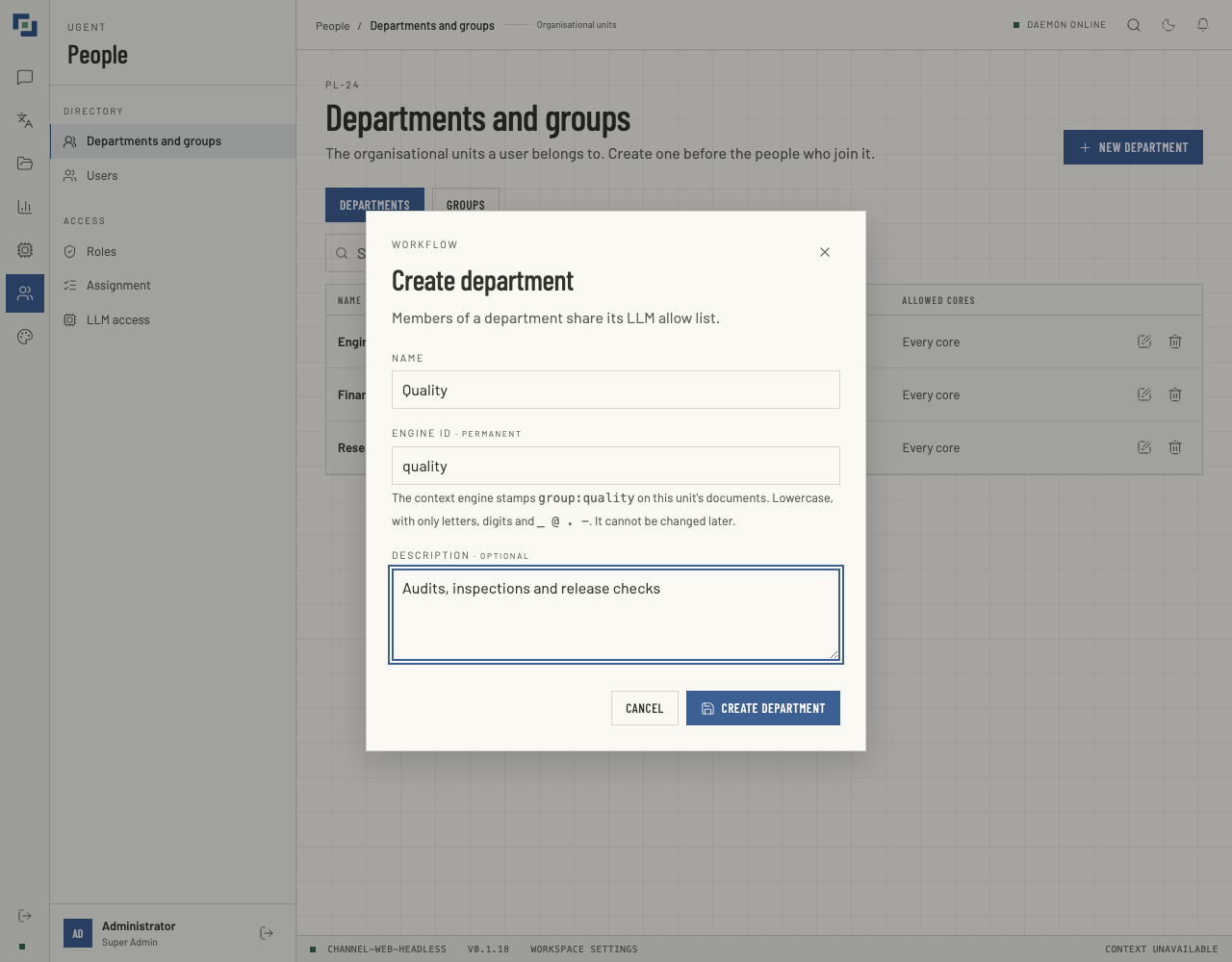
Open People → Departments and groups. It opens with users:read or with llm-access:manage, and changes need llm-access:manage.
- Choose Departments or Groups, then New department or New group.
- Name: such as
Quality, used by no other unit of that kind. - Engine id: the unit's label in the context engine,
group:<engine id>: lowercase letters, digits and_ @ . -, at most 64 characters. Use "quality", shown while the field is empty, fills in the engine id: the name, folded the way the engine folds it. - Description: optional. Then click Create department or Create group.
The table counts each unit's Members, and its Allowed cores: a number linked to LLM access, or Every core when it has no allow list. People join a unit on Users; this page only counts them. The pencil edits a unit's name and description. The bin deletes it after saying how many members it unassigns: they keep their accounts and lose its allow list. Deleting a group also ends the workspaces it granted. A deletion that would unassign somebody you may not manage is refused, naming them, and the dialog stays open with the refusal: You can only delete a group when you hold every permission of each member it unassigns: …
An engine id is permanent. The engine's access rules label documents from their paths (Engineering/Shared/ becomes group:engineering), and members reach them only by holding the same group:<engine id>, so a new id would keep the unit's name and lose everything its members could read. A department and a group never share an id, and an id stays taken after its unit is deleted. A unit made before engine ids existed has one only if its name was already folded; otherwise the pencil asks for one before it saves anything, a rename included, and that id is then permanent.
A group's workspaces
A workspace is granted to groups, never to a department or to one person. With workspace:manage as well, the Groups tab has a Workspaces column, naming the agent workspaces each group's members may select, and on each row a button, Workspaces for the group. It lists every registered workspace with a tickbox, a disabled one marked (disabled), and saves each tick at once.
Roles
A role is a named set of permissions, and each person holds at most one. Open People → Roles, which needs roles:read.
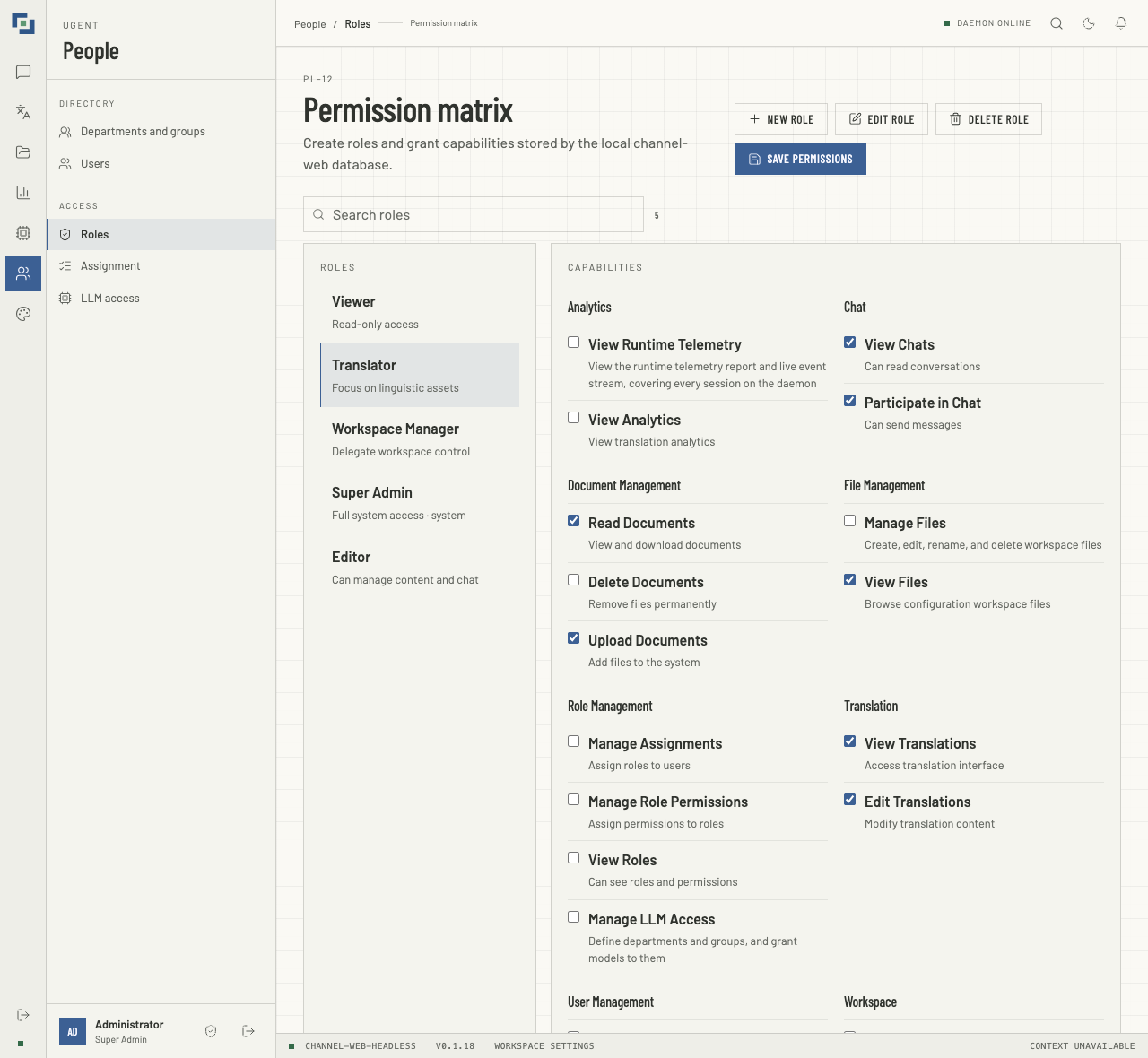
- Pick the role in the list on the left.
- Tick the permissions it should carry. They are grouped by category and shown by name; the table below gives the string behind each name.
- Click Save permissions. The role now carries exactly what is ticked. Tick or untick a permission you do not hold yourself and nothing is saved: You can only add or remove a permission you hold. One you do not hold may stay as it is.
Changes need roles:manage; without it the matrix is read-only.
- New role asks for a Role name, up to 100 characters, and a Description, up to 500; Create role adds it with nothing ticked.
- Edit role renames or describes the role selected, and Save role saves it. What it grants is ticked on the matrix.
- Delete role deletes the role selected once nobody holds it. Until then the refusal says how many do, as in 2 people hold this role: give each of them another role on Assignment first. Deleting a role also needs every permission it grants: This role carries permissions you do not hold.
Role names. A name is kept as you type it, its spaces aside: those at either end go, and each run of spaces, tabs or line breaks becomes one. Two names are the same when they read the same, whatever their case, spacing, invisible characters or compatibility forms such as full-width letters, so a name another role has is refused: Role "Editors" already exists. Super Admin, however it is cased, spaced or hidden, is the system role's alone: "Super Admin" is reserved for the system role. A name holding a character that changes how the rest of it displays, such as a right-to-left override, is refused too, and the refusal names the first such character and where it is: Role name holds a character that changes how it displays (U+202E at position 7). Remove it and try again. The place counts code points from 1, in the name as the dialog sends it, its ends trimmed, so a flag, or an emoji built from several, counts for more than one.
- Super Admin is the system role, marked system. Whatever is ticked, it passes every permission check and no allow list restricts it. Only a Super Admin can change its ticks or give it, and nobody renames or deletes it: Edit role and Delete role are not offered for it. The first account the server creates,
admin, holds it. - Editor, Viewer, Translator and Workspace Manager are made on a new deployment's first start, each with what it is for, as the table below shows. From then on they are yours to change: no restart makes or re-ticks one. Stock roles made by an earlier version keep what they have: they were made with nothing ticked.
- A change applies at once on the server; menus catch up when the person next loads the page. A screen their role does not open is left out of the menu, and its address says Permission required. A section's rail button opens its usual screen, or, where they may not open that one, the first of its screens they may.
| Stock role | Ticked on a first start |
|---|---|
| Viewer | View Chats, Read Documents, View Files, View Translations |
| Translator | Viewer's, and Participate in Chat, Edit Translations, Upload Documents |
| Editor | Translator's, and Delete Documents, Manage Files |
| Workspace Manager | Editor's, and View Workspaces, Manage Workspace, View Analytics, View Users |
None of them holds View Runtime Telemetry: runtime telemetry is for administrators, and only a Super Admin sees it until you grant it.
Every permission
| Permission | Shown as | On screen | Through the API |
|---|---|---|---|
analytics:read | View Analytics | Translate → Analytics and Insights → Translation analytics | GET /api/translation-analytics |
telemetry:read | View Runtime Telemetry | Insights → Runtime telemetry | GET /api/telemetry/report and /stream |
chat:read | View Chats | Chat, Runtime → Models | Reading conversations and events; GET /api/models, /api/ugent/status |
chat:write | Participate in Chat | The composer: sending, steering, stopping, voice and calls; without it, read-only. Running a translation needs it too | POST /api/chat/completions, /api/ugent/commands, /api/ugent/stop, /api/ugent/steering; conversation changes; voice recordings and dictation |
documents:read | Read Documents | Translate → Library, a conversation's files, Read aloud | GET /api/library/…, GET /api/files/… |
documents:upload | Upload Documents | Attach files in chat, which is offered only with it; adding to the library, and a library document's language | POST /api/files, POST /api/library, PATCH /api/library/<id> |
documents:delete | Delete Documents | Deleting from the library | DELETE /api/library/<id> |
files:read | View Files | Files, Cloud connections, Runtime → Configurations read-only, record cards and citations | GET under /api/config/ and /api/integrations/; POST /api/records/resolve, /api/config/files/citations/resolve |
files:manage | Manage Files | Changing Files, saving Configurations, Runtime → File confinement, connecting cloud accounts | Changes under /api/config/ and /api/integrations/ |
assignments:manage | Manage Assignments | With users:read and roles:read, changing roles on Assignment | POST /api/assignments, DELETE /api/assignments/<id> |
llm-access:manage | Manage LLM Access | LLM access; Departments and groups, with creating, editing and deleting units there and its sync panel | Changes under /api/directory/; GET /api/directory/models; /api/directory-sync |
roles:read | View Roles | Roles; with users:read, Assignment; the Initial role list | GET /api/roles/…, GET /api/assignments |
roles:manage | Manage Role Permissions | With roles:read, New role, Edit role, Delete role and Save permissions | POST /api/roles, PATCH and DELETE /api/roles/<id>, POST /api/roles/<id>/permissions |
translation:read | View Translations | Translator, Glossaries, References, History and Workspaces under Translate; a team's shared references | GET on glossaries, references, translations, projects, domains and translation jobs |
translation:edit | Edit Translations | Changing glossary entries, references and workspaces; with translation:read and chat:write, running a translation | Changes to those; POST /api/translation-jobs |
users:read | View Users | Users, Departments and groups; with roles:read, Assignment; the person pickers on File confinement and a team's page | GET /api/users, GET /api/directory/departments and /groups |
users:manage | Full User Management | With users:read, Create user, a person's department and groups, and Reset access key, Disable, Enable and Delete | POST /api/users, PATCH and DELETE /api/users/<id>, POST /api/users/<id>/password |
workspace:view | View Workspaces | Runtime → Health, Translate → Teams and a team's page, the daemon indicator | GET /api/runtime/health, /api/runtime/agent, GET /api/teams/… |
workspace:manage | Manage Workspace | Runtime → Commands, Theme studio, Embedded widget, creating teams and, as a team's owner or admin, changing it, Manage domains on Glossaries, and a group's workspaces | /api/workspaces, /api/ui/theme, /api/ui/widget, /api/config, POST /api/runtime/commands, changes to teams and to /api/translation-domains |
users:write, roles:write and translation:review are no more: nothing checked them, and every start of the server deletes them and every grant of them.
Assign roles
Open People → Assignment, which needs users:read and roles:read. Each person's role is under Daemon role; changing one needs assignments:manage.
- Find the person by name, identifier or email.
- Pick their role. The row reads Staged.
- Stage as many as you need; they are kept while you search and page.
- Click Save board, which counts them, as in Save board · 2.
The board saves one person at a time, and nothing on it can be changed until it is done. Each row it saved reads Saved. Each change it could not save stays staged and is named with why, even when its row is on another page, as in Not saved: Mariam El Amrani (You can only give a role whose every permission you hold).
A person holds one role, so a new one replaces the old, and saving Select a role… over a role takes it away. Only a Super Admin gives Super Admin, takes it away, or moves a Super Admin to another role; see Who manages whom. The last active Super Admin keeps it: picking another role says Cannot reassign the last active system administrator, and Select a role… says Cannot remove the last active system administrator.
LLM access
An allow list names the models a department's or a group's members may use. Until one is set, everyone may use every model the agent offers. Open People → LLM access, which needs llm-access:manage. It offers every model the agent serves, and every model the agent of each enabled workspace serves, whatever you may use yourself.
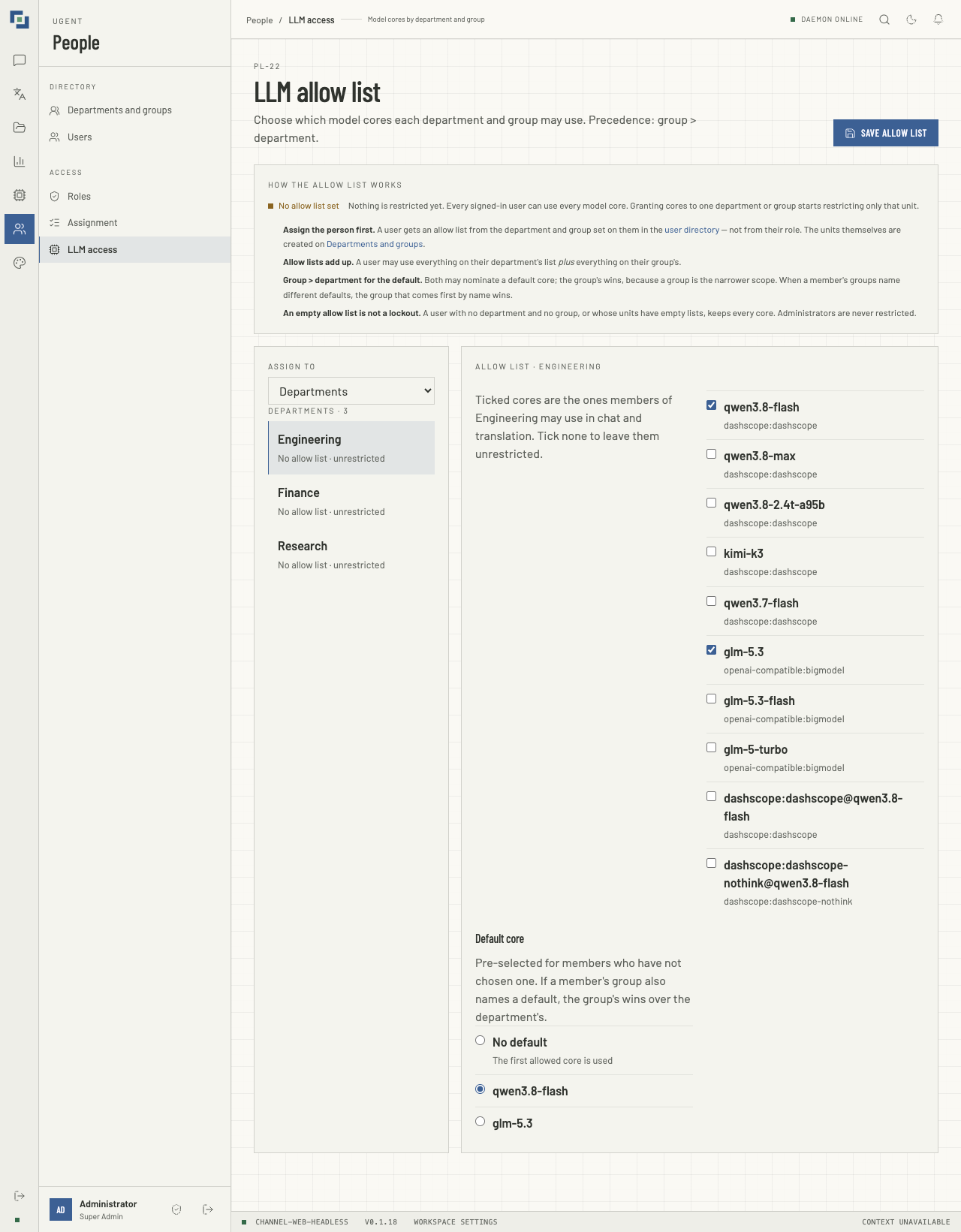
- Under ASSIGN TO, choose Departments or Groups (win on default), then the unit: N cores allowed, or No allow list · unrestricted.
- Tick the models its members may use. Tick none to leave them unrestricted.
- Under Default core, pick the model chosen for members who have not picked one, or No default for the first one allowed.
- Click Save allow list. It saves this unit only; choosing another unit first drops your ticks.
A model no agent offers any more stays on a list, marked No longer offered by the daemon — untick to remove. When a workspace's agent cannot list its models, the page says A workspace could not list its models, so a core only it serves is missing here until it can, and a grant it does not find reads Not listed by any workspace that answered instead.
How one person's models are decided
- No allow list anywhere: everyone may use every model.
- Super Admin: every model, always.
- The lists add up: their department's list, plus each of their groups'.
- Nothing on them: with no department and no group, or only units with no list, they may use every model. An empty list never locks anyone out.
- Their default is a group's, else their department's, else the first model on their combined list. When two of their groups name different defaults, the group whose name comes first wins, every time.
The model chip in the chat composer lists only the models they may use that the agent still offers, and moves a stored choice they may no longer use to their default; a message that names no model runs on it. The server checks chat turns, the /model command and translations itself, and refuses any other model with This model is not available to your department or group. A live call is not checked against the allow list.
What these screens do not do
A department here opens none of its folders. What Files, record cards and the agent's file tools reach is File Confinement, a table of its own: add each person there too, and change their row when they move. That page names each of its rows by the person this directory holds, however old the account.
Directory sync to the context engine
The context engine filters search by its own directory of people and groups. Directory sync keeps it in step with this one:
- What it sends: every person, as
federation:ugent-web:<user id>by default, with their name, whether they areactive, and the engine ids of their department and groups; and every department and group that has an engine id, with its name. Roles and allow lists are not sent. - When: five seconds after a person, department or group changes, every ten minutes regardless, and at start. Each push holds the whole directory.
- What the engine accepts: only this workspace's people, and groups it created or was handed; a group made by hand in the tenant console is refused until it is handed over. Engine roles, clearances and path aliases stay as the console set them. Someone deleted here, or not
active, is turned off there, unless the engine refuses the push: it refuses a whole push that would leave none of this workspace's people or groups, or would remove more than three and more than half of its people, groups or memberships, and this workspace never sends the confirmation such a push needs. Such a change does not reach the engine, andGET /api/directory-syncshows the refusal.
It is off unless whoever runs the server turns it on (UGENT_DIRECTORY_SYNC=1, then a restart). With llm-access:manage, Departments and groups shows where it stands, under ENGINE DIRECTORY SYNC at the foot of the page:
- Off, while it is not turned on; Not pushed yet after a start; Pushed, with when; or Failed, with when and why.
- The units a push leaves out, each because it has no engine id or shares its engine id with another unit, once a push or a preview has run.
- Preview, which asks the engine what a push would change and shows its answer. It writes nothing, and works while the sync is off.
GET /api/directory-sync reports the same, with the engine's whole answer to the last push, and POST /api/directory-sync/run pushes now; with {"dryRun": true} it previews.
What search returns follows the engine ids. A person holds group:<engine id> for their department and each group, and search returns what the engine's access rules label with those. Under the group_actor layout Engineering/Shared/ is labelled group:engineering, so give a department the engine id its folder name folds to. The sync sends no path alias, so a person's own folder, such as Engineering/m.elamrani/, reaches them in search only once their engine record has that path alias.
When something looks wrong
- Every screen says Permission required. The person has no role, or a role with nothing ticked: a role made with New role starts empty, and so does a stock role made by an earlier version.
- Invalid identifier or access key. The key is wrong, or the account is not
active: the message is the same. It is the same too when two older accounts differ only in case and the sign-in named neither exactly. - SSO says No workspace account matches that identity. No account is linked to that identity, and either the provider vouched for no email (
email_verifiednot true) or no account has the email it vouched for. That identity cannot sign in to this workspace. means the account is not active, or is already linked to another identity at that provider. - Single sign-on comes back to the sign-in screen with a sentence under the access key. The sentence says why it could not begin or finish:
- Single sign-on is not set up for this workspace. Sign in with your access key. The web server has no single sign-on settings, or refuses the ones it has; see SSO & Federated Identity.
- That sign-in named no usable identity provider. Please choose one and try again. The start named no provider, or one of more than 64 characters.
- Your network has sent too many requests. Please try again in 15 minutes. The address has used up a count: single sign-on's own 1,000 starts and returns, or the 20,000 requests that everything from it shares; see Branding and the Embedded Widget. The same sentence stands where the single sign-on buttons would be when the sign-in screen's read of them is refused that way, which only the 20,000 can do.
- Too many single sign-on attempts from your network have failed. Please try again in 15 minutes. Ten attempts from the address failed within 15 minutes. A server error, or a request the browser left unanswered, counts as a failed attempt.
- Something went wrong while signing you in. Please try again. The web server could not look the identity up, or the broker answered with none; the web server's log has the error.
- A change is refused with …whose every permission you hold. The person, or the role, holds a permission you lack, or the person is a Super Admin; see Who manages whom.
- Someone still has every model. No unit has a list, they hold Super Admin, or their department and groups have none.
- LLM access says a workspace could not list its models. An agent behind one of the workspaces did not answer, so a model only it serves is missing for now; its grants read Not listed by any workspace that answered.
- A conversation says You no longer have access to this conversation workspace. The person left the group that granted its workspace, that grant or group was removed, or the workspace was disabled.
- A department's members do not find its shared folder in search. The sync is off or failing, the department has no engine id or one its folder name does not fold to, or the engine refused its group. The sync panel on Departments and groups says whether the last push failed, and why, and which units it left out;
GET /api/directory-syncgives the engine's whole answer, its refusals included.